
The app on your phone
Put the Unvop dashboard on your phone's home screen and use it like an app to answer enquiries on the go.
The dashboard works on your phone, and you can add it to your home screen so it opens like an app, full screen, with its own icon. It's the quickest way to answer a new enquiry or check a contact while you're out.
There's nothing to download from an app store. You install it from your phone's browser.
Add it to an iPhone or iPad
- Open Safari and go to your Unvop dashboard. Sign in.
- Tap the Share button.
- Tap Add to Home Screen, then Add.
Add it to an Android phone
- Open Chrome and go to your Unvop dashboard. Sign in.
- Tap the browser's menu (⋮).
- Tap Install app or Add to Home screen, then confirm.
On Android, press and hold the Unvop icon for shortcuts straight to Inbox, Contacts and Pages.
Get around on a phone
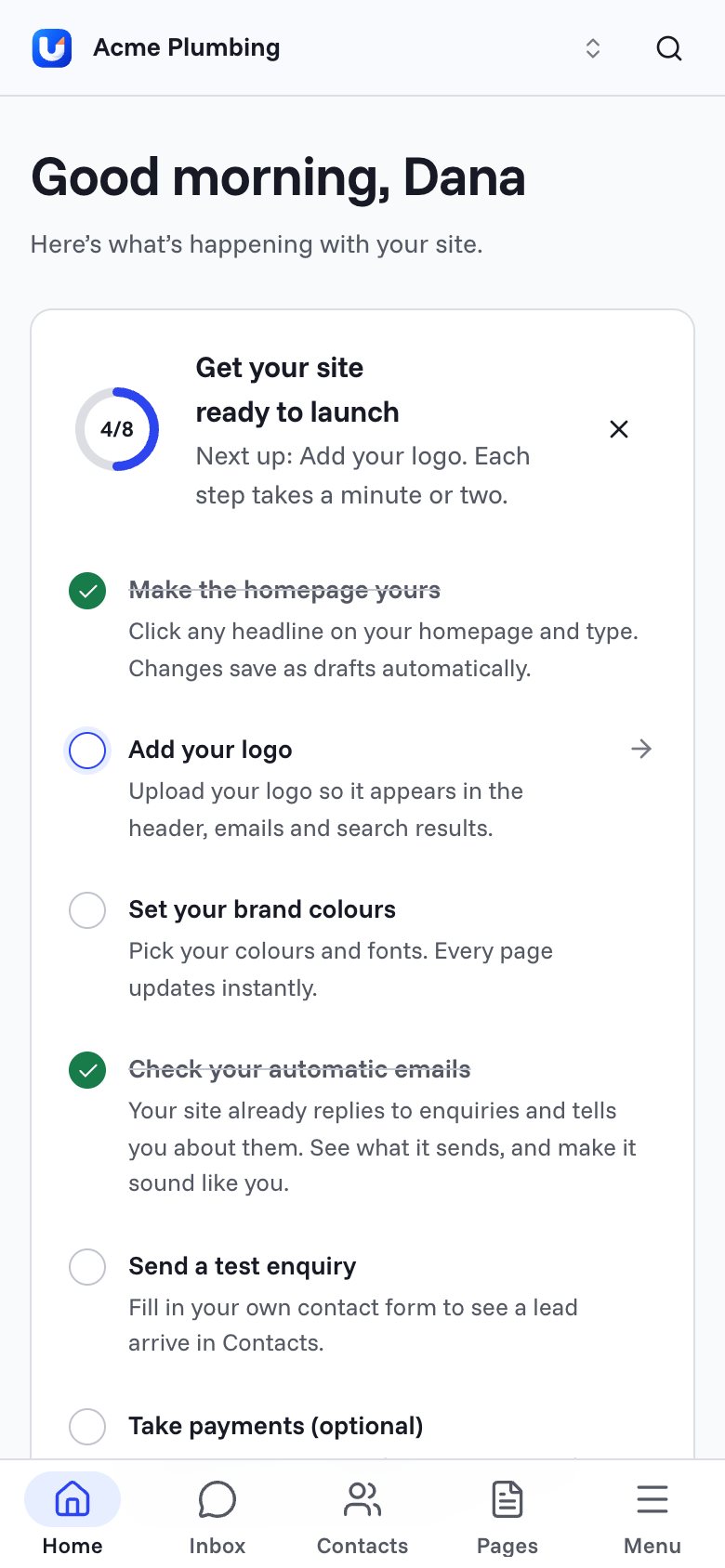
On a phone (any screen narrower than about 900 pixels), the dashboard rearranges itself:
- The bottom bar has the four places you'll use most: Home, Inbox, Contacts and Pages. A number on Inbox shows how many conversations have unread messages.
- Menu, at the end of the bottom bar, opens the full sidebar with every workspace, View site, and your account menu.
- The top bar shows your site's name (tap it to switch sites) and a search button that opens the same search as ⌘K on a computer.
The bottom bar steps out of the way while you're typing, so the keyboard has room.
What works best on a phone
Everything in the dashboard works on a phone, but some things suit a small screen better than others:
- Good on a phone: reading and answering enquiries in the Inbox, looking up and updating Contacts, moving deals in the Pipeline, checking Home, and quick edits to words or pictures.
- Easier on a computer: building new pages, rearranging sections, workflows and tools, which open full screen.