
Entries
Add, edit, publish and reorder the entries of a collection, or bring many in at once from a spreadsheet.
An entry is one item in a collection: one dish, one room, one course. Each entry fills in the fields the collection has. Entries start as drafts and appear on your site once you publish them.
Add an entry
- In the sidebar, open Data, then Collections, and open the collection.
- Press New and the name of one entry, like New room. In an empty collection, press Add the first ….
- Fill in the details. The first field, the name, is always required. Fields marked with \* are required too.
- Press Save draft to keep it hidden, or Publish to put it on your site.
A few fields have more than one part:
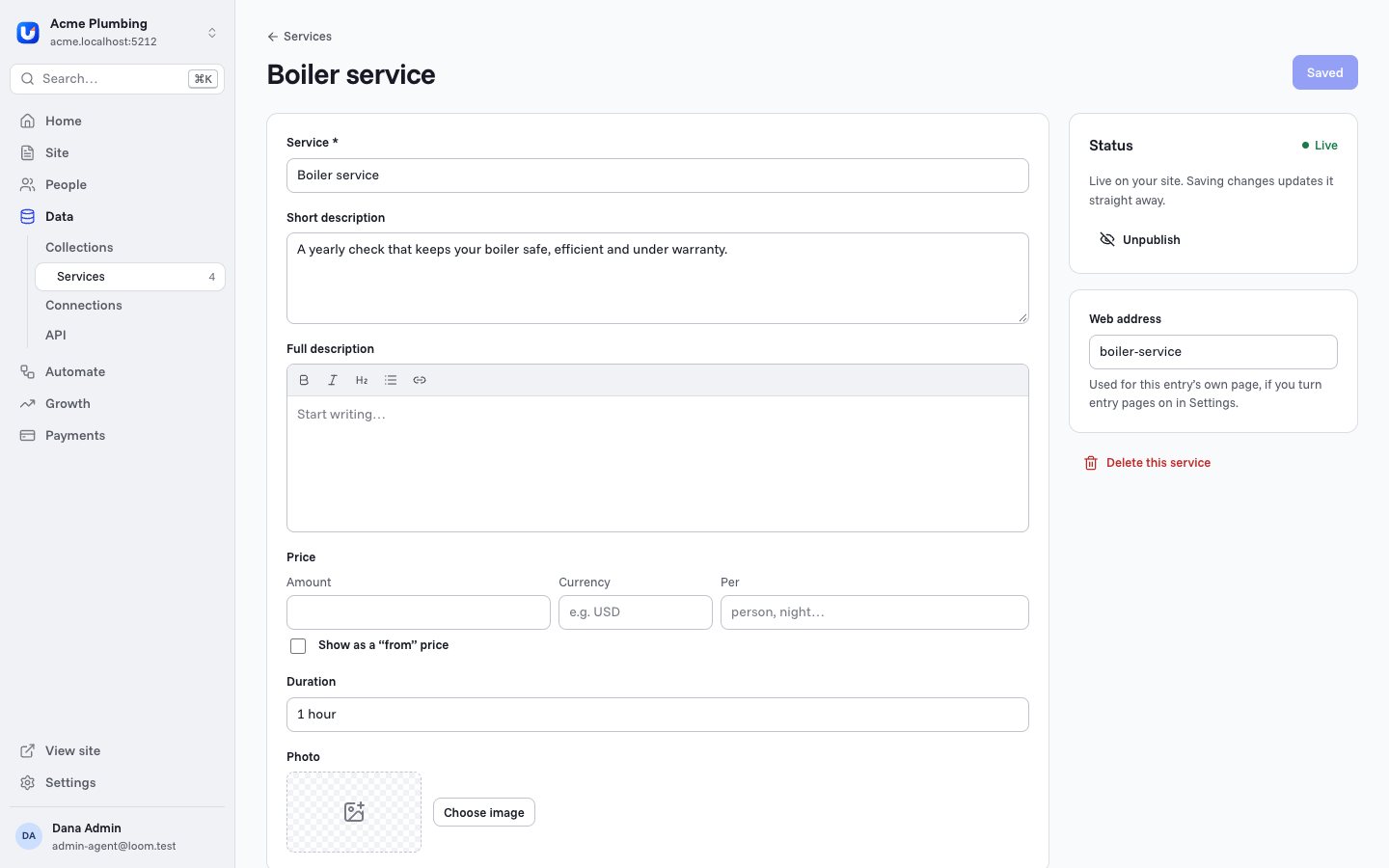
- Price: an Amount, a Currency (like USD), what it's Per (like "person" or "night"), and Show as a "from" price for prices that start at that amount.
- Date: the day, plus Add a time if it matters.
- Link to another collection: choose one entry of the other collection.
Edit an entry
- Open the collection. The Entries tab lists them all, with their Status and when they were Updated.
- Press an entry to open it.
- Make your changes.
- For a live entry, press Save and update site. Your site changes straight away. For a draft, press Save draft or Publish.
To find one, type in the search box above the list, or choose Live or Drafts instead of All entries.
Publish or hide entries
An entry is either Live (on your site) or a Draft (hidden). The Status box on the right of an entry says which.
- To hide a live entry, open it and press Unpublish.
- To change several at once, tick them in the Entries list, then press Publish, Unpublish or Delete in the bar that appears.
When a live entry has its own page, View on your site opens it.
Change an entry's web address
Each entry has a Web address, made from its name. It's used for the entry's own page when entry pages are on.
- Open the entry.
- Change Web address. Use lowercase letters, numbers and hyphens.
- Save the entry.
Put entries in order
If the collection is set to Your order (drag in Entries), drag entries by their handles in the Entries tab. Your site shows them in that order. Clear any search first, and load the whole list if there's a Load more button.
If the collection sorts by a field, like price or date, the list tells you so. Change it under Settings, Order and search. See Collections.
Import entries from a spreadsheet
Save your spreadsheet as a CSV file first (in Excel, Numbers or Google Sheets, it's under export or download). The first row must name the columns, like "Name, Price".
- Open the collection, press the ⋯ menu and choose Import from a spreadsheet. In an empty collection, you can press Import a spreadsheet instead.
- Press Choose a CSV file, or paste the rows into Rows. Files can be up to 2 MB.
- Press Preview.
- For each column, choose which field it Goes into, or Skip this column. Columns named like a field are matched for you. One column must go into the name field.
- Under How to import, choose:
- Add as new entries: every row becomes a new entry. Nothing you have changes.
- Update matching entries, add the rest: a row with the same web address or name updates that entry.
- Replace all entries: deletes every entry first, then adds the rows.
- Switch on Publish the imported entries now if they should go live straight away. Otherwise they're saved as drafts.
- Press Import.
When it's done you'll see how many were added and updated. Any rows that couldn't be imported are listed with the reason, so you can fix them in your spreadsheet and import again.
Export entries
Press the ⋯ menu on the collection and choose Export as CSV to download every entry.
Delete an entry
Open the entry and press Delete this … at the bottom right, then confirm. A live entry disappears from your site straight away.
Entries from a connection
When a collection fills from a Google Sheet, Airtable or another service, its entries can't be edited here. Each one says where it comes from, with Open the source settings. Change it at the source instead. See Synced and live data.