
Edit text and images
Change words on the page, add links and buttons, and replace pictures and their descriptions.
In the editor you change words and pictures where they sit on the page. Click, type, and the change saves as a draft straight away. Publish when you're happy.
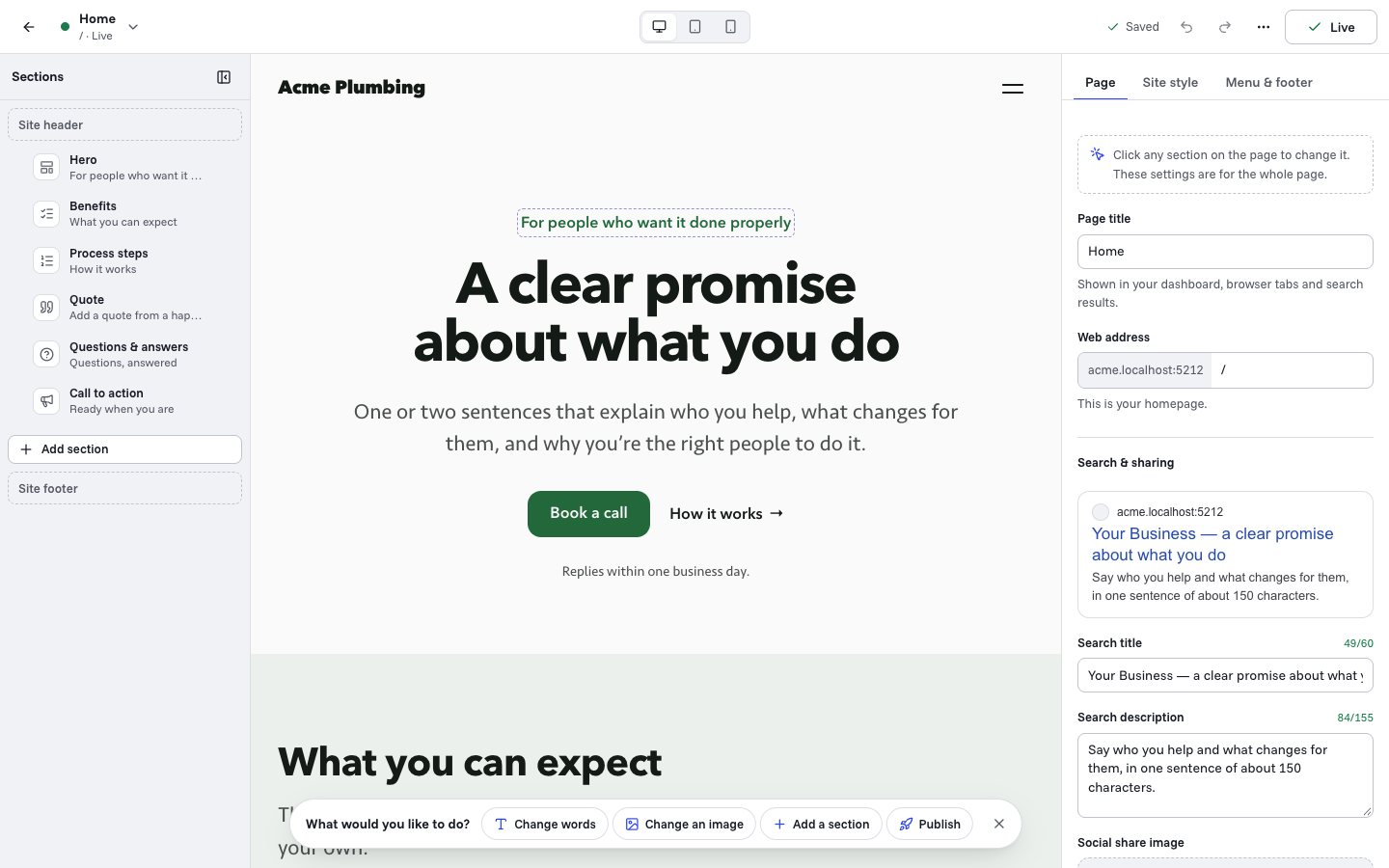
Change words
- Open the page in the editor.
- Click the words you want to change. A cursor appears.
- Type.
- Press Esc, or click somewhere else, to finish. For a one-line piece of text, such as a heading, Enter also finishes.
You can also change a section's words in the right-hand panel: select the section and open Words. Clicking the words on the page is usually quicker.
Format longer text
Paragraphs that allow formatting show a small toolbar above them while you type:
- Bold and Italic (or ⌘B and ⌘I)
- Add link
- Heading (H2) and Subheading (H3)
- Bulleted list
- Clear formatting
Headings, buttons and short lines are plain text, so the toolbar doesn't appear on them.
Add a link inside text
- Select the words you want to link.
- Press Add link in the formatting toolbar.
- Paste a web address, or type a page on your site such as
/contact. - Press Apply. To take a link off, select it, press Add link, then Remove.
Change where a button goes
Click a button's words to change what it says. To change where it goes:
- While you're editing the button's words, press Edit link below it. The right-hand panel opens on the button's settings.
- Words on the button: the label visitors read.
- Goes to: pick A section on this page, Another page, one of Your contact details (Email, Call or WhatsApp), or Another website, email or phone… and type the address.
- Looks like: Button, Outline or Text link.
To link a button to a section on the same page, that section needs a link name. See Sections.
Replace a picture
- Hover over the picture. Click to change image appears.
- Click it. Choose an image opens, showing your media library.
- Pick an image, or press Upload an image to add a new one. You can also drop a file onto the window.
- Under Image description, describe what's in the picture.
- Press Use image.
You can also select the section and use Change image in the right-hand panel, or drop an image file straight onto it there. Remove image clears it.
Describe your pictures
Every picture needs a short description (alt text). Screen readers read it aloud for people who can't see the image, and search engines use it to understand the page.
Say what's in the picture in a sentence: "Hana smiling at her desk with a cup of coffee", not "image1" or "photo". In the panel, the field is Describe the image; a picture without a description shows a reminder.
To find every picture without a description, open Media and filter by Needs description. See Media.
Add or change a video
Where a section holds a video, hover over it: Click to add a video or Click for video settings appears. Choose a video lets you pick from your library or Upload a new one (up to 200 MB). Give it a Video title, then press Use video. A new upload takes a moment to prepare before you can use it.