
Connections
Connect a Google Sheet, an Airtable base, an RSS feed or any API, so collections can fill from it and workflows can call it.
A connection is a service your site reads from: a Google Sheet of opening times, an Airtable base of products, a blog feed or a booking system's API. Once it's connected, a collection can fill itself from it, and workflows can send requests to it. Keys you add stay on the server and are never shown again.
Connections are on Site Pro and the agency plans.
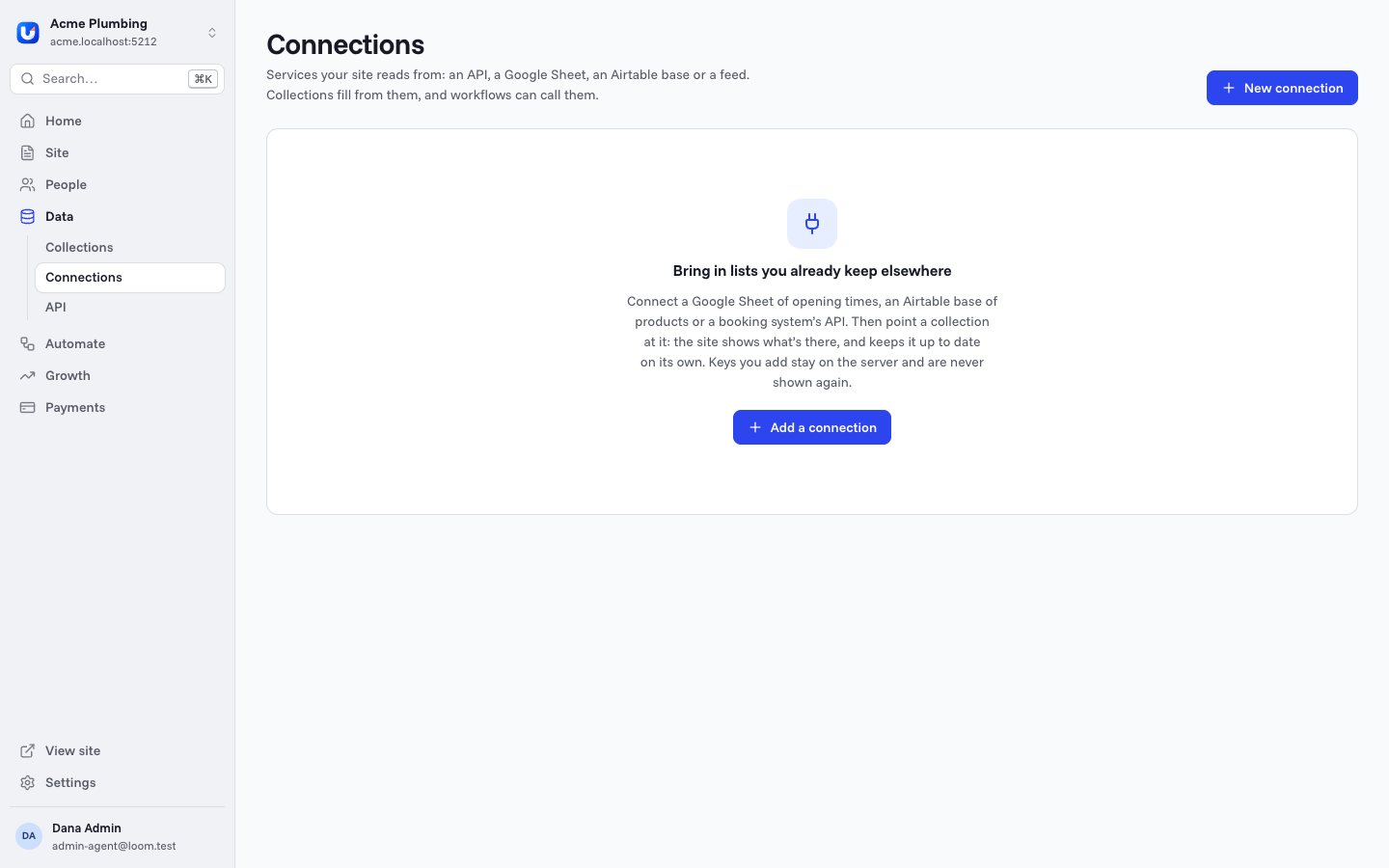
Add a connection
- In the sidebar, open Data, then Connections.
- Press New connection.
- Choose what you're connecting to:
- Google Sheet: a sheet shared as "Anyone with the link". Each row becomes an item, and the first row names the columns.
- Airtable: a base in Airtable, read with a personal access token.
- RSS feed: a blog, podcast or news feed. Each post becomes an item with its title, link, date and picture.
- REST API: any service that answers JSON over https, with its key sent as a header.
- Give it a Name you'll recognise, like "Opening hours sheet". Only you see it.
- Paste its address: the Sheet address, Base address or Feed address. For a Google Sheet, copy it from the address bar or from Share, then Copy link.
- Press Create connection.
The connection opens, ready for its key if it needs one.
Add a key or token
Most services want a key so they know it's you.
- Open the connection.
- For Airtable, paste your token into Personal access token. For a REST API, press Add a secret header, type the header name the service asks for (often
AuthorizationorX-Api-Key) and paste the value. - Press Save changes.
Secret values are encrypted and never shown again. A saved one reads Set ••••••••. To change it, type a new value and save.
Some services want the key inside a longer header, like Authorization: Key abc123. Write the plain header as Key {secret}, then add a secret header with the same name holding only the key. Until the key is saved, nothing is sent and the connection shows Needs its key.
Check it works
- Open the connection and find Try a request.
- For a Google Sheet or RSS feed, press Send: it fetches the address and shows what a collection would read.
- For an API, choose the method, type a path like
/items?limit=10, and press Send.
You see the status, how long it took and the answer. Saved headers and keys are sent with it. For an API, press any value in the answer to copy its path. Long lists show their first 20 items.
Fill a collection from a connection
Open a collection, choose the Source tab and pick this connection. See Synced and live data.
Each connection lists the Collections that read from it, marked Synced or Live.
Change or delete a connection
Open the connection, change its Name, address or headers, and press Save changes.
To delete it, press Delete connection at the bottom. Collections that read from it switch to manual and keep the entries they have now. Its keys are deleted too.
Only the site's owners and admins can change connections.
Related
- Synced and live data
- Collections
- Data API
- Developer guide: Connections