
Integrations
Connect outside services to your site, like email, Stripe, analytics, Google and spam protection, from one list or right where you use them.
Integrations connect outside services to your site: sending email, taking payments with Stripe, counting visits, Google search and reviews, keeping spam out of your forms, and call booking. Each one is set up in the dashboard, with no code and no developer. Only site owners and admins can change them.
There are two ways to reach an integration:
- Settings, then Integrations: one list of all of them, grouped by where they're used.
- Right where you use it: Stripe at the bottom of Payments, analytics and Google on Growth, spam protection and Ask on Forms, call booking on Pipeline. Press Set up or Settings there and the settings open beside what you're doing.
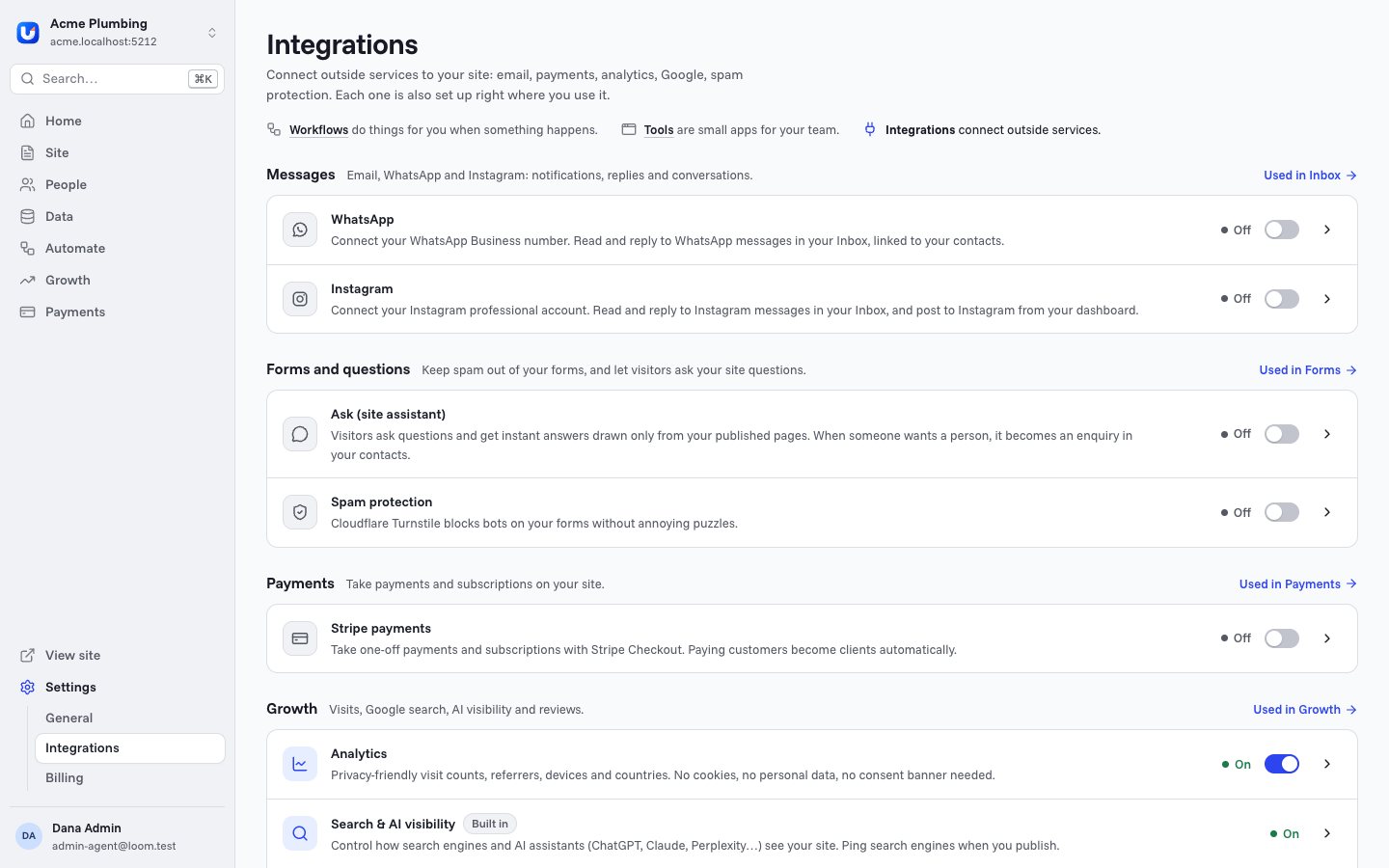
Turn an integration on
- In the sidebar, open Settings, then Integrations.
- Find it. They're grouped into Messages, Forms and questions, Payments, Growth and Bookings, each with a link to the screen where it's used.
- Flip its switch on.
If it needs a key or other details first, the switch takes you to its page instead. There:
- Read How to set it up. It walks you through the steps, with links to the right places.
- Turn on the switch at the top.
- Fill in the Settings. Required ones must be filled in before you can save.
- Press Save at the bottom.
Each one shows its state: On, Off or Needs setup (it's on but a required key is missing). One your plan doesn't include shows the plan that has it, with a lock.
Set one up where you use it
- Open the screen that uses it, like Payments.
- At the bottom, find it in the short list, like Taking payments.
- Press Set up (or Settings once it's on). Its settings open in a panel.
- Make your changes and press Save. Close the panel to carry on.
Check it works
Integrations that talk to another service have a Check it works card. Save your changes first, then press Run check. It tries your saved settings, and nothing is sent to your visitors.
Turn one off
Flip its switch off on the Integrations list, or turn off the switch on its page and press Save. Your settings are kept for next time.
The integrations
Messages (used in the Inbox)
Email is built in and no longer an integration: see Emails. WhatsApp and Instagram are set up beside their messages, in the Inbox: see Connect Instagram and WhatsApp.
Forms and questions (used in Forms)
- Spam protection: Cloudflare Turnstile blocks bots on your forms without puzzles. Under What to protect, choose Forms only (recommended) or Every page.
- Ask (site assistant): visitors ask questions and get instant answers drawn only from your published pages. Anyone who wants a person can leave their details, which arrive as a "Chat enquiry" in Forms and Contacts.
Payments (used in Payments)
- Stripe payments: take one-off payments and subscriptions with Stripe Checkout. Paying customers become clients automatically. See Take payments.
Growth (used in Growth)
- Analytics: privacy-friendly visit counts and referrers. No cookies, no personal data, no consent banner needed.
- Search & AI visibility: always on (marked Built in). Choose how AI assistants may use your content. Bing and other IndexNow search engines hear about every page you publish.
- Google Search Console: see what people search on Google to find you, and whether Google has listed every page. See Google search.
- Google reviews: ask happy customers for a Google review, and show your rating on the site. Sent with your site's built-in email.
Bookings (used in Pipeline)
- Call booking: let visitors book a call with your Cal.com, Calendly or SavvyCal link. Paste your Booking link, then add a "Book a call" section or button anywhere on your site.
Where did Webhooks go?
The old Webhooks plugin is now a workflow. Every site that used it has one workflow per event it sent, marked Moved from the old Webhooks plugin in Automate, Workflows. Each one sends the same data to the same address, signed the same way, and is on or off just as the plugin was. See Moved from Webhooks.
Something that isn't here?
- To use any other service with an API key, add it under Data, Connections. See Connections.
- To send what happens on your site to another app, like Zapier or Make, use a workflow with Call another app. See Workflows.