
Collections
Keep lists like a menu, rooms, courses or your team in one place, decide what details each entry has, and show them on any page.
A collection holds things that share the same details: dishes with a price, rooms with a rate, courses with dates. You add each one once as an entry. Change an entry and every page that shows it updates. Each entry can also have its own page.
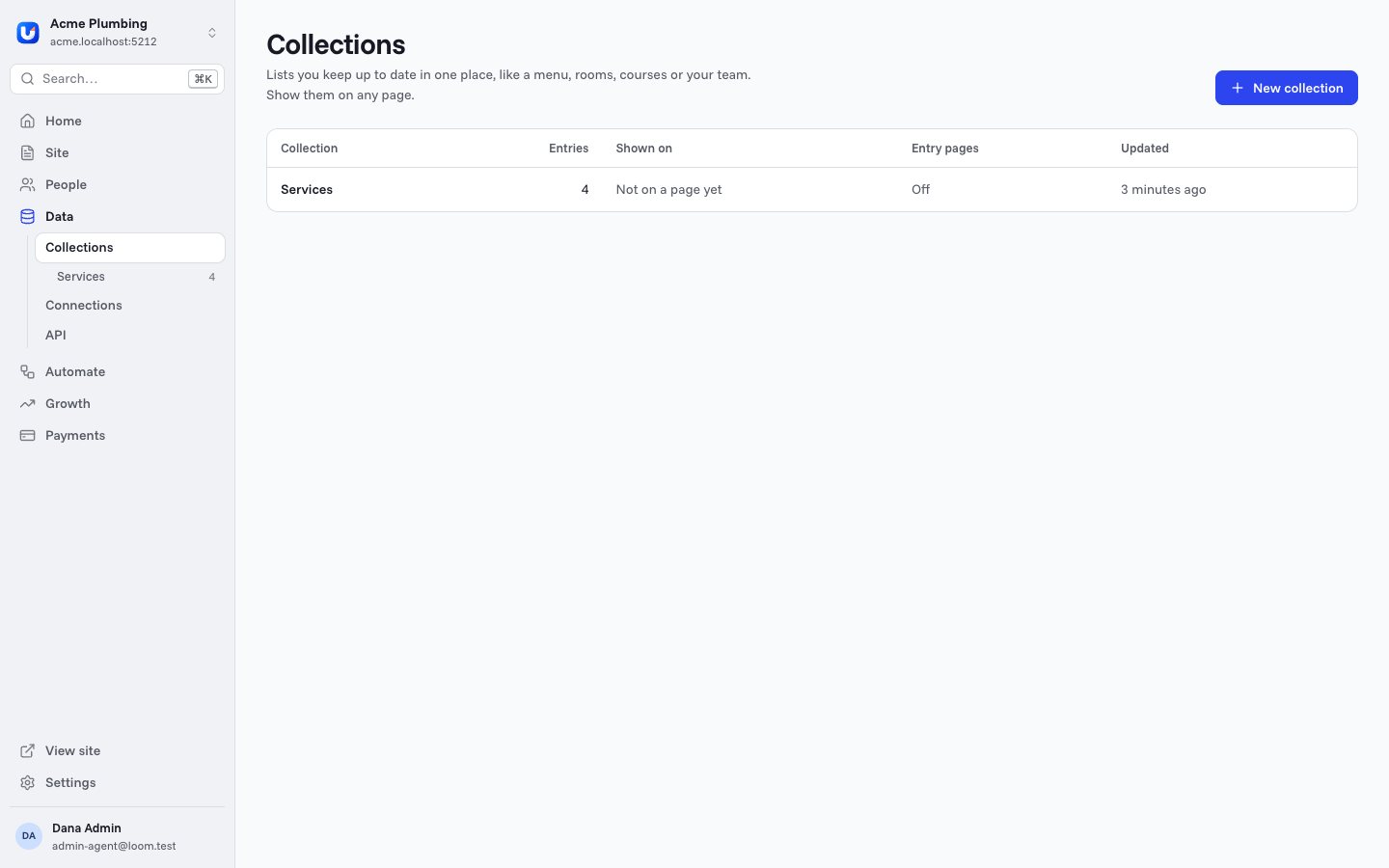
Create a collection
- In the sidebar, open Data, then Collections.
- Press New collection.
- Pick a starting point: Menu, Rooms, Courses, Services, Team, Events, FAQs, Testimonials, Products, Dive sites, Tours or Locations. Each comes with the fields that kind of list usually needs. Pick Blank to start with a name field only.
- Type a Name, in the plural, the way you'd say it: "Dive sites", "Our team".
- Press Create collection.
You can change the fields of any starting point afterwards.
The Collections list shows each one's number of Entries, the pages it's Shown on, whether it has Entry pages, and when it was Updated.
Choose the details each entry has
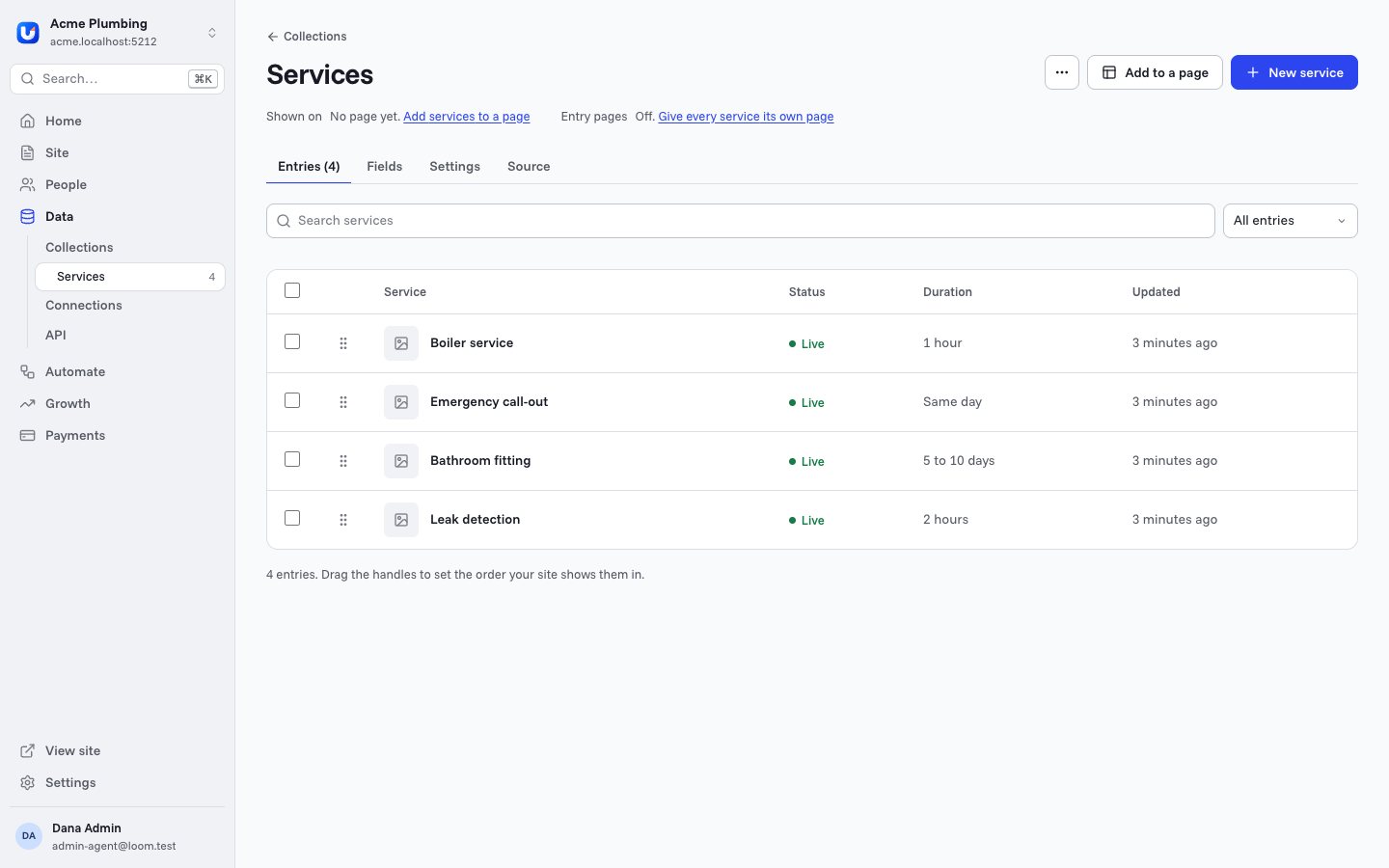
- Open the collection and choose the Fields tab.
- The first field names each entry and makes its web address. You can rename it in Name field label, but it's always short text and always required.
- Press Add field to add another detail. Give it a Label, like "Price", and choose a Type.
- Add Help text if whoever fills it in needs a hint, and switch on Required if every entry must have it.
- Drag fields by their handles to change the order they appear in the entry form and on entry pages.
- Press Save changes.
| Type | For |
|---|---|
| Short text | One line, like a name or a subtitle |
| Long text | A few sentences without formatting |
| Formatted text | Paragraphs with bold, lists and links |
| Number | A count or a measurement, like depth or seats |
| Price | An amount with its currency, per unit, or a "from" price |
| Date | A day, with a time if it matters |
| Image | A photo from your media library |
| Web link | An address starting with https:// |
| An email address visitors can write to | |
| Phone | A phone number visitors can call |
| One choice | One option from a list you set, like a level |
| Tags | Several options, like dietary labels |
| Yes or no | On or off, like "Vegetarian" or "Sold out" |
| Link to another collection | Points at an entry of another collection |
For One choice and Tags, type each option under Options and press Enter. For Link to another collection, choose which collection it Points at.
Name it and describe it
- Open the collection and choose the Settings tab.
- Under Names, set the Name (plural, like "Rooms") and One entry is a (singular, like "Room"). The singular is used on buttons, like New room.
- In What it holds, write one line about the list. It shows under the name, and the AI uses it when it writes your pages.
- Press Save changes.
Sections find the collection by its key, shown under Names. The key never changes, even when you rename the collection.
Set the order entries appear in
- Open Settings, then Order and search.
- In Show entries by, choose Your order (drag in Entries), or a field such as a price or a date.
- For a field, choose the Direction, like Lowest first or Latest first.
- Press Save changes.
This is the default everywhere the collection appears. A section on a page can choose its own order.
With Your order, drag entries by their handles in the Entries tab.
Help search engines understand your entries
Under Order and search, choose what Search engines see each entry as, such as an event or an offer. It helps Google show the right details, like prices or dates. Leave it on Something general if nothing fits.
See where a collection shows
Under the collection's name you'll find:
- Shown on: every page with a section showing this collection. Press a page to open it in the editor. If it isn't on a page yet, press Add … to a page.
- Entry pages: the address of the entries' own pages, with Edit the … page design, or Off with a link to turn them on.
Export, import or delete
Press the ⋯ menu beside Add to a page:
- Import from a spreadsheet: add or update entries from a CSV file. See Entries.
- Export as CSV: download every entry.
- Delete collection: removes the collection, its entries and their pages. Sections that showed it will show nothing.
Only the site's owners and admins can change fields and settings. Everyone on the team can add and edit entries.