
Build your first site
Describe your business, add your logo and a few pictures you like, and Unvop builds and publishes the whole site.
Unvop builds a complete website from what you tell it about your business. You answer a few short questions, press Build my site, and about 20 minutes later the site is live at its own web address, ready to edit.
New accounts start here. If you already have a site, open the site name at the top of the sidebar and choose New site from a description.
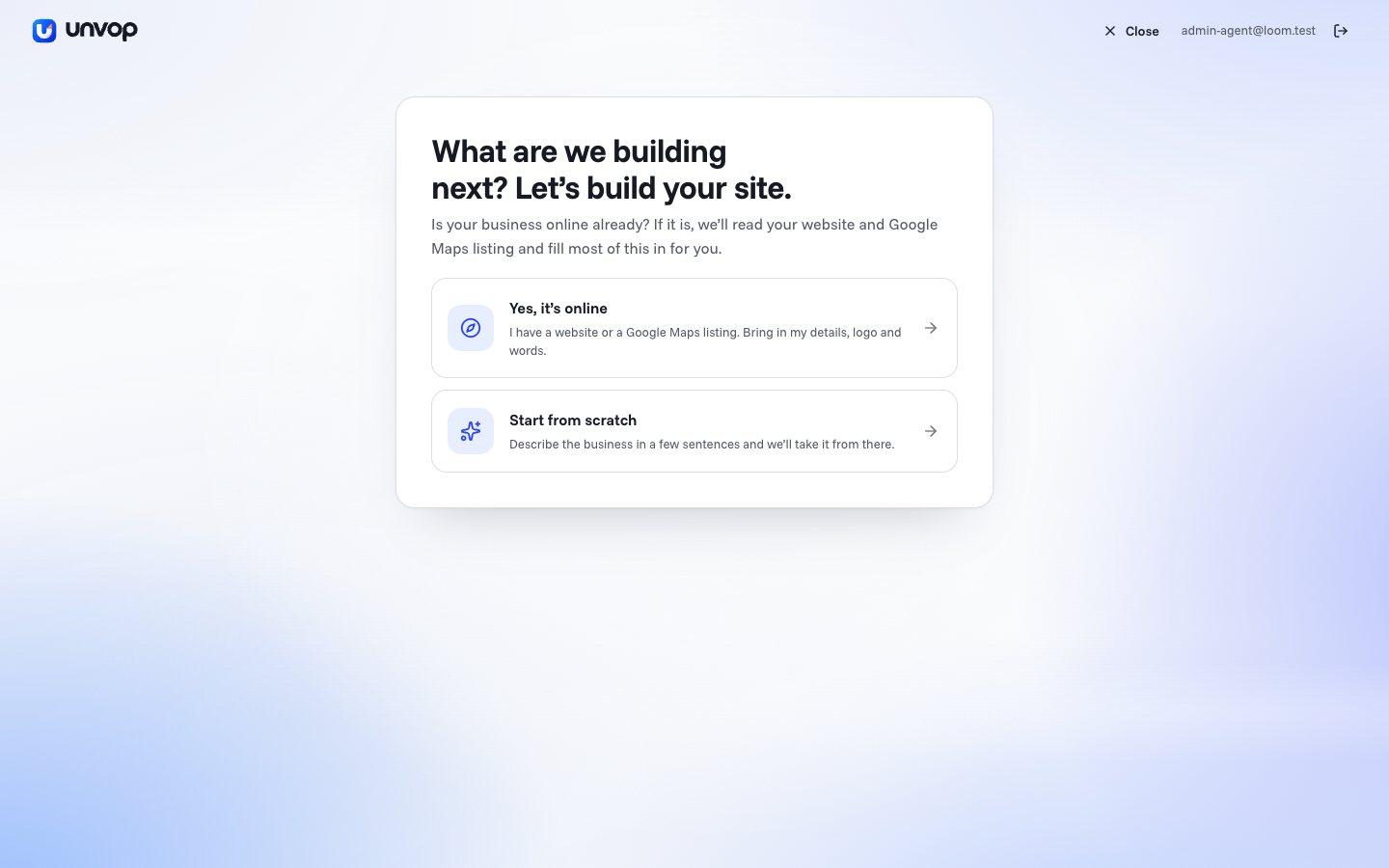
Start the build
The builder first asks: Is your business online already? Pick the way that fits.
If your business is online:
- Choose Yes, it's online.
- Under Find it on Google Maps, type your business name (and the town, if the name is common), then pick your listing. You can also, or instead, fill in Your website.
- Press Read my business. Unvop reads your website and listing, finds your logo and icon, and writes a description.
- On Here's what we found, check the description under About the business, fix anything that's off and add what's missing. Check your Website, Address, Phone and Email.
- Press Continue to the Brand and Web address steps below.
If you're starting from scratch:
- Choose Start from scratch.
- Under About the business, write what you do, who it's for, where you are and what makes you different. Two or three sentences is enough; more detail gives a better site. Use Try one to see an example.
- Press Continue.
- Add your contact details under How customers reach you, or press Skip.
Add your logo and pictures you like
The Make it yours step is optional. Press Skip to leave it out.
- Under Logo, add your logo (PNG, SVG, JPEG or WebP).
- Under Site icon, add the small square that shows in the browser tab.
- Under Inspiration, add pictures whose look you like: another website, your menu, your shopfront. They set the style of the design.
- Wait for the uploads to finish, then press Continue.
If you don't add a logo, Unvop designs one for you.
Choose your web address
- Under Web address, type the start of your address, for example
harbour-physio. A tick means it's free. - Check the summary of what the site will be built from.
- Press Build my site.
The address is free and goes live the moment your site is built. You can connect your own domain afterwards: see Connect your own domain.
What happens during the build
You'll see each stage tick off as it happens:
- Researching your business
- Art direction and a rendered design
- Measuring the design: grid, type, colour
- Building every page to the design
- Deploying to the edge
- Checking it against the design
Most sites take around 20 minutes, some a little longer. A timer shows how long it's been running. You can close the tab: the build carries on, Unvop emails you when it's done, and coming back to the builder picks up the live view again.
To stop a build, press Stop this build. Nothing more is built, and the stages that finished are kept.
If a build stops
If something goes wrong you'll see That build stopped. with the reason.
- Press Try again from where it stopped to carry on. Finished stages are kept, so this is quicker than starting over.
- Press Edit and try again to change your description first.
When it's done
Your site is live. Every page, form and search detail is published, at the address shown. From here you can:
- Open the editor to change anything on the homepage.
- Visit site to see it as visitors do.
- Connect your domain to use your own address.
What to check first
The site is written from what you told Unvop and what it could find. Read it through before you share it:
- Your phone number, email and address, on the contact page and in the footer.
- Prices, hours and anything you promise customers.
- Names and roles of people, and any figures or claims.
- That photos show what they say they show.
Change anything that's wrong in the editor: see Edit text and images. Then work through Get your site ready to launch on your Home screen.