
Forms
Build contact forms, sign-ups and questionnaires, choose what happens after someone sends one, and put them on any page.
A form is how visitors get in touch. Every submission is kept with the form, the person is saved to Contacts, and you can be emailed each time. Build the form once under Forms, then place it on as many pages as you like.
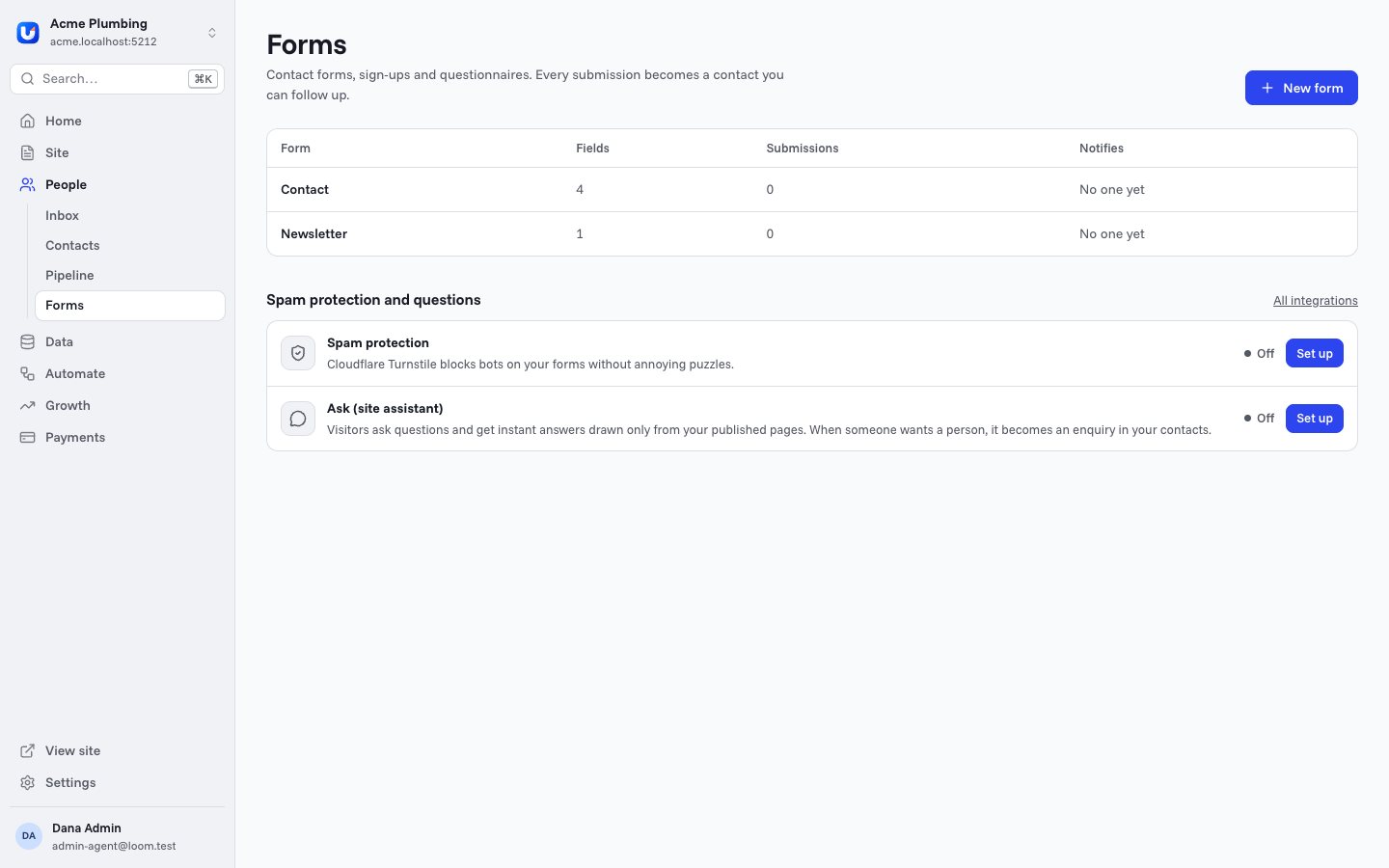
Create a form
- In the sidebar, open People, then Forms.
- Press New form.
- Type a Form name, like "Book a discovery call". Only you see this name.
- Press Create form.
The form opens with three fields to start you off: Your name, Email and How can we help?.
The list under Forms shows each form's number of Fields, its Submissions and who it Notifies.
Add and change fields
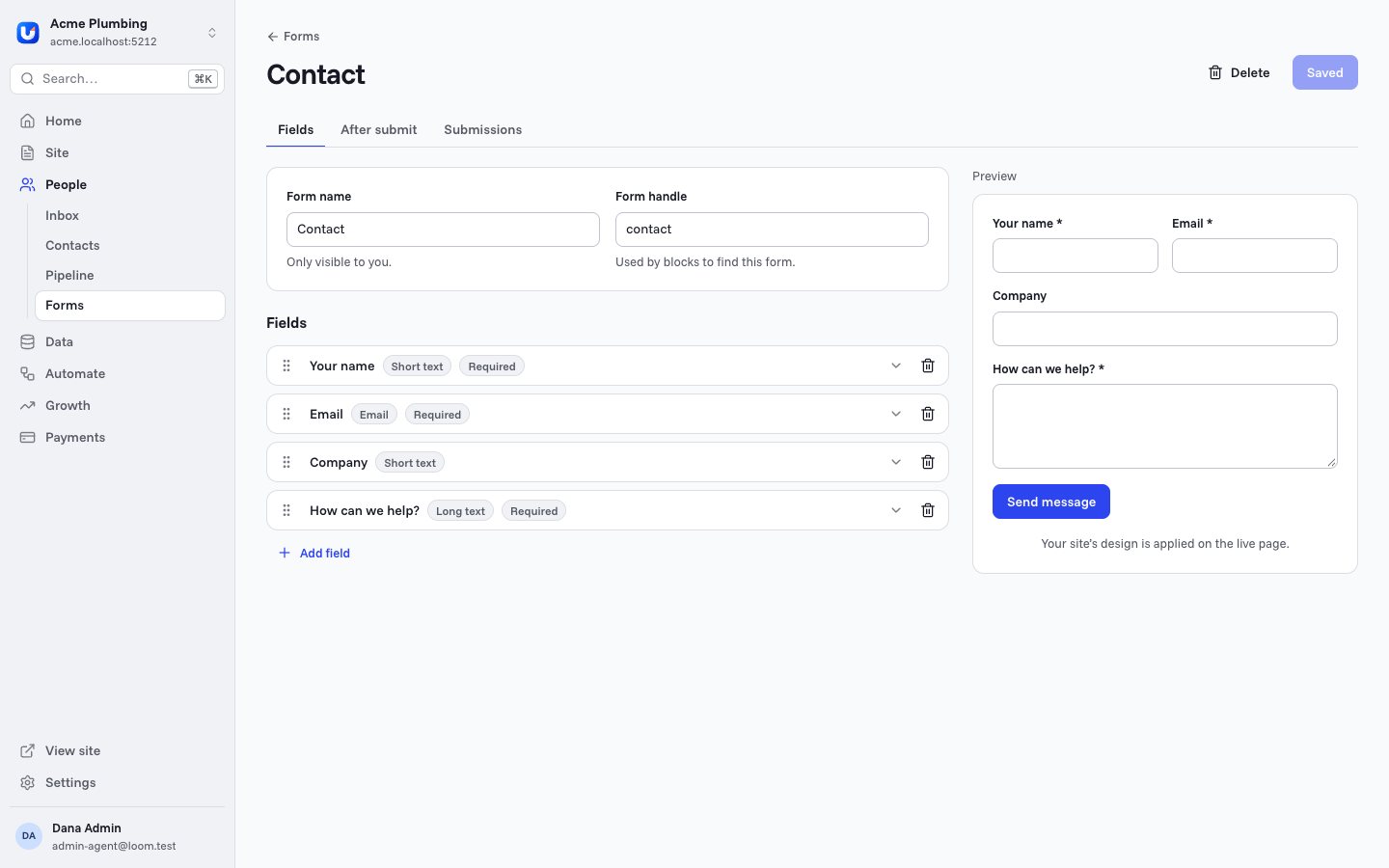
- Open the form. You start on the Fields tab, with a live Preview beside it.
- Press Add field at the bottom of the list, or press a field to open it.
- Fill in the field:
- Label: the question people see.
- Type: what kind of answer (see below).
- Choices: for Dropdown, Multiple choice and Checkboxes. Type each choice and press Enter.
- Placeholder: faint example text inside the box.
- Help text: a short hint under the field.
- Save to contact as: put the answer on the contact's profile as their Name, Email, Company or Phone. Leave it on Answer only for everything else.
- Width: Full width, or Half width to sit two fields side by side.
- Required: switch on if the form can't be sent without it.
- Drag fields by their handles to change the order.
- Press Save changes.
Saving updates the form everywhere it's used, straight away.
| Type | For |
|---|---|
| Short text | A name, a company, one line |
| An email address, checked as one | |
| Phone | A phone number |
| Website | A web address |
| Long text | A message of a few sentences |
| Dropdown | One answer from a list |
| Multiple choice | One answer, all choices shown |
| Checkboxes | Any number of answers from a list |
| Single checkbox (e.g. consent) | One tick box, like agreeing to your terms |
| Hidden value | A value sent with the form that visitors don't see |
Each field also has an Internal name, made from its label. It's the column name in exports. Two fields can't share one.
Choose what happens after someone sends it
Open the form's After submit tab.
What visitors see
- Button label: the words on the send button.
- Thank-you heading and Thank-you message: shown in place of the form once it's sent.
- Or send them to a page: an address like
/thank-you, if you'd rather show a whole page. Leave it empty to show the message.
Emails
- Notify these people: email addresses that get each submission. Type one and press Enter.
- Alert these people: each submission is emailed to them. Leave it empty to use the alerts list in Emails.
- Send the person an automatic reply: on unless you switch it off. The words and design are the Enquiry auto-reply in Emails. Booking forms send Booking request received instead, and newsletter forms Newsletter welcome.
Contacts & pipeline
- Pipeline stage: where new people land, like New lead. See Pipeline.
- Add to score: points added to their lead score. Higher scores mean warmer leads.
- Tags: tags given to everyone who sends this form.
- Client onboarding: tick one of the onboarding steps when they send it, handy for an intake questionnaire.
Press Save changes when you're done.
Put a form on a page
- Open the page in the editor and use Add a section.
- Choose the Form section.
- In its settings, pick your form under Which form.
- Change the Heading and Text above it if you like, and choose a layout: Heading above form or Heading beside form.
- Publish the page.
A form can sit on as many pages as you want. Edit it once under Forms and every page updates. The Form handle on the Fields tab is how sections find the form. Change it only if you know a section isn't using it yet.
Read submissions
- Open the form and choose the Submissions tab. The number beside it is how many you've had.
- The table shows the first few answers and when each one was Received. Press a row to see everything they sent, plus the Page it came from, where they Came from and their Country.
- To delete one, open it, press Delete, then Delete again to confirm. The contact stays in your contacts.
To download them, press Export CSV. You get the submissions loaded on screen; press Load more first if you want older ones too.
Every submission also shows on the person's contact page, under History.
Keep spam out
Every form is protected without you doing anything:
- Hidden checks catch most bots, which are shown a normal thank-you so they learn nothing. Nothing is saved.
- One address can only send a form so many times in a few minutes.
If bots still get through, turn on the Spam protection plugin under Settings, then Integrations. It uses Cloudflare Turnstile, which checks each form as it's sent, invisibly for most people. Choose Forms only (recommended), or Every page if bots are hammering the whole site.
Delete a form
Open the form and press Delete, then Delete form. Its submissions are deleted too, but the contacts are kept. Pages using the form stop showing it.