
Pages
See every page on your site, add new ones, change their titles and addresses, copy them and remove them.
Pages lists every page on your site: home, about, services, contact and the rest. From here you open a page in the editor, add a new one, or copy and remove pages. Articles have their own list: see Articles.
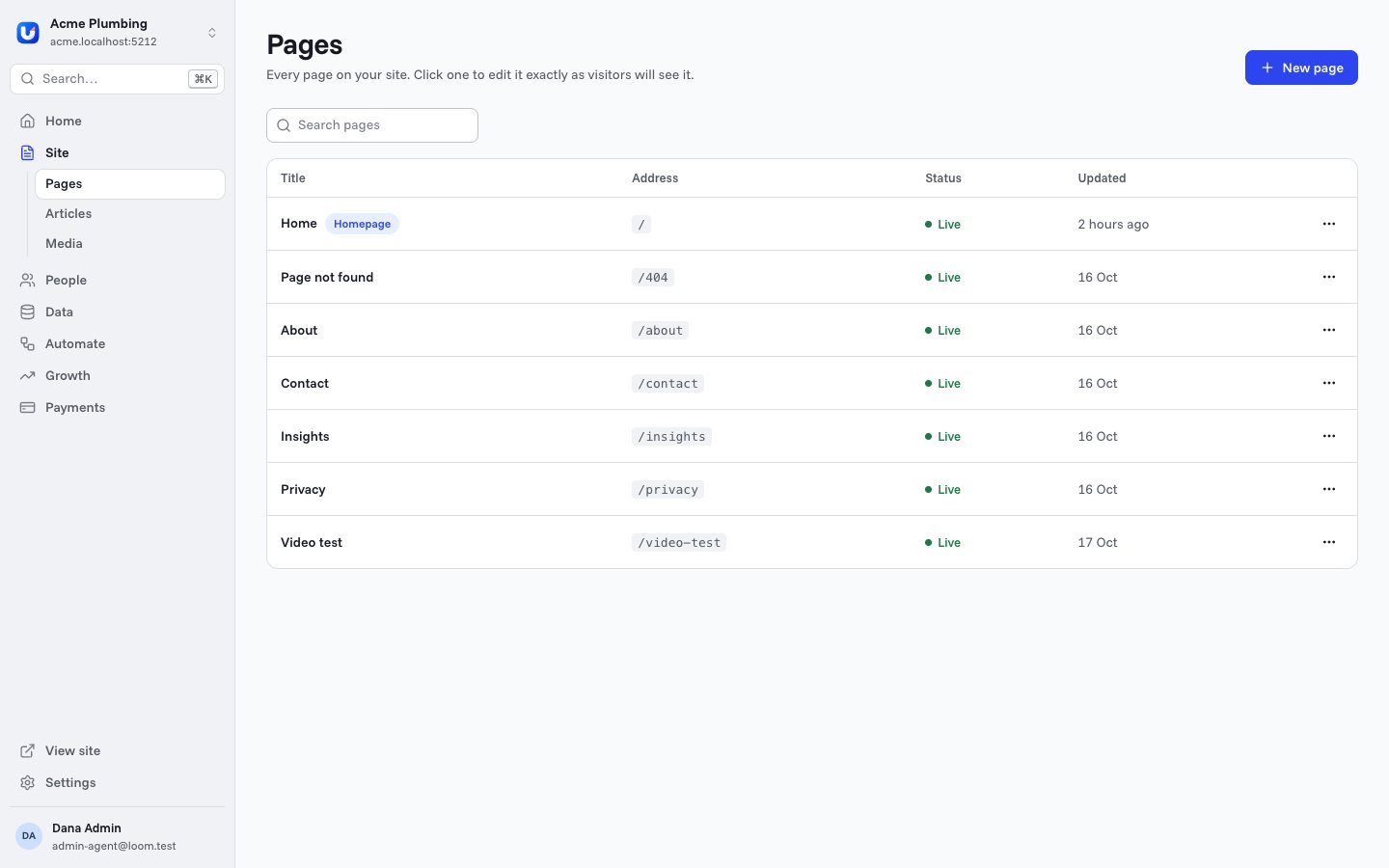
Each row shows the page's Title, its Address (the part after your domain), its Status and when it was Updated. The homepage is at / and carries a Homepage tag. When you have more than six pages, a search box appears above the list.
Open a page to edit it
- In the sidebar, open Site, then Pages.
- Click the page's title.
The page opens in the editor, looking exactly as visitors see it. See The editor.
Add a page
- In Pages, press New page.
- Type a Title, such as "About us".
- Check the Web address. Unvop fills it in from the title; change it if you like. The full address shows underneath.
- Under Start from, pick a starting layout, or Blank for an empty page.
- Press Create & open editor.
The new page is a draft until you publish it.
Rename a page or change its address
- Open the page in the editor.
- Make sure no section is selected: press Esc, or the back arrow at the top of the right-hand panel. The panel shows the Page tab.
- Change the Page title. It's shown in your dashboard, browser tabs and search results.
- Change the Web address if you need to.
- Publish the page for the change to go live.
The homepage's address is always / and can't be changed.
Add a page to the menu
New pages aren't added to the menu by themselves. Add a link to them under Menu & footer in the editor, or in Menus, header and footer.
Copy a page
- In Pages, open the page's menu (the ⋯ button at the end of its row).
- Choose Duplicate.
A copy appears in the list. Press Edit on the message that appears to open it.
Unpublish or delete a page
- Open the page's menu.
- Choose Unpublish to take it off the live site but keep it as a draft, or Delete to remove it for good.
- Confirm.
Deleting a live page removes it from your site and deletes its history. Visitors following old links see a "not found" page. The homepage can't be unpublished or deleted.
Keep a page out of search results
For a thank-you page or a private landing page:
- Open the page in the editor, with no section selected.
- On the Page tab, under Search & sharing, turn on Hide from search engines.
- Publish the page.
The page stays on your site for anyone with the link.