
Workflows
Let your site do the follow-up for you. Reply to enquiries, move people along the pipeline, send messages and keep lists up to date.
A workflow is a short list of steps your site runs by itself when something happens. "When someone sends the contact form, add them to contacts, email them a thank-you and tell me." Each one starts with what sets it off, then runs its steps in order. Every run is written down under Runs.
Workflows, tools and integrations
Automate has three kinds of thing, and the dashboard shows the same one-line reminder on each screen:
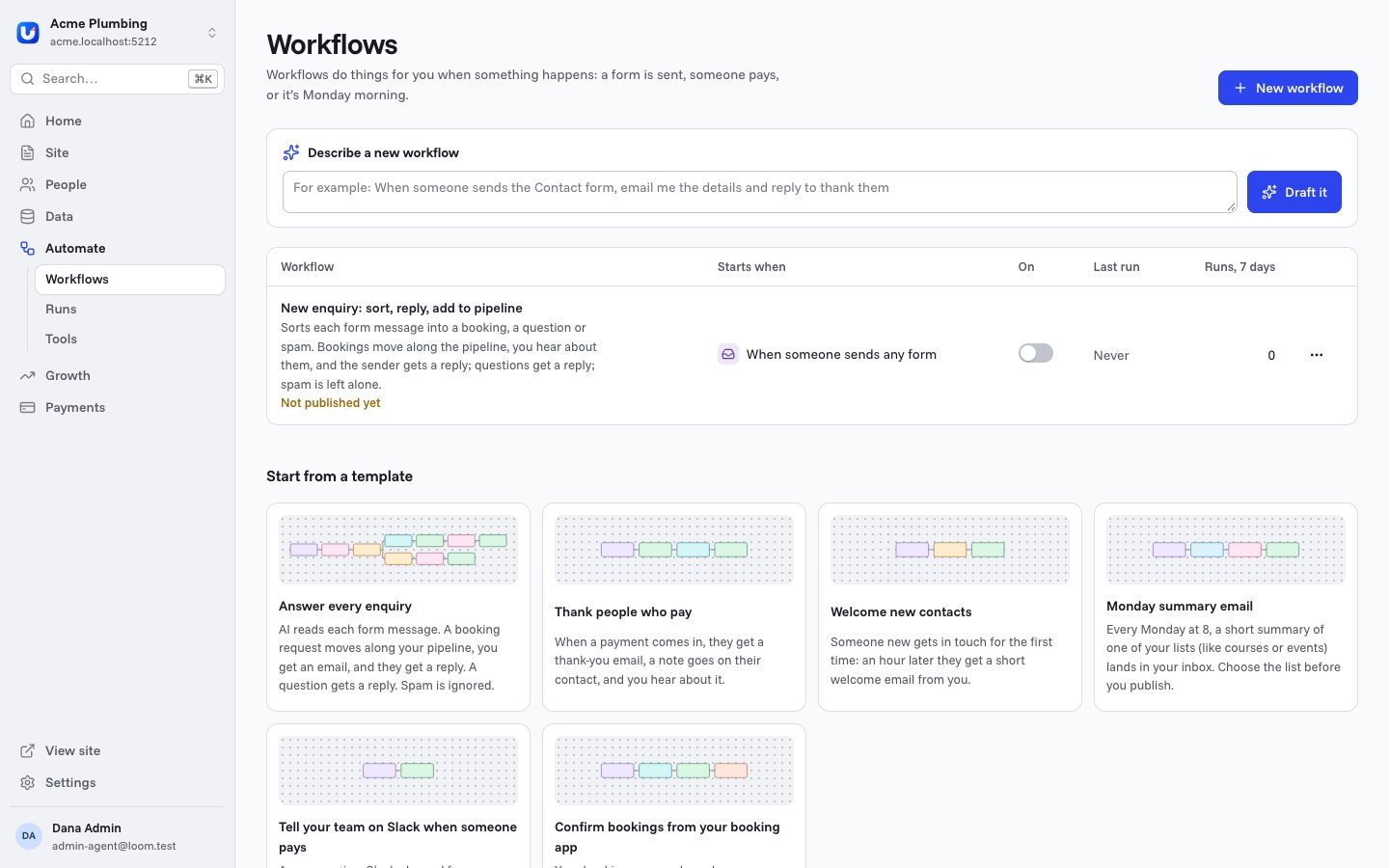
- Workflows do things for you when something happens: a form is sent, someone pays, or it's Monday morning.
- Tools are small apps for your team, like a bookings desk. See Tools.
- Integrations connect outside services, like Stripe or Google. See Integrations.
Describe what you want
The easiest start: say it in a sentence, and you get a draft to check. See Describe a workflow.
- In the sidebar, open Automate, then Workflows.
- Under Describe what you want, write what should start it and what should happen, like "When someone sends the contact form, email me the details and reply to thank them".
- Press Draft it. It takes about half a minute.
- The draft opens. Check each step, then press Publish changes and switch it on.
Start from a template
Each template is ready to run once you've checked its details. See Workflow templates for what each one does.
- Open Workflows.
- Under Or start from a template, pick one, like Answer every enquiry or Thank people who pay.
- The workflow opens. Fill in anything it asks for (a list, a Slack address), and press Publish changes.
Build a workflow yourself
- Open Workflows and press New workflow.
- Give it a Name for what it does, like "Reply to new enquiries".
- Under Start from, choose Blank, or one of the templates.
- Press Create workflow.
- Press Choose what starts this workflow and pick a trigger, like Form sent or Payment received.
- Press Add a step and pick what happens next, like Send an email. Repeat for each step.
- Press a step to open its settings on the right and fill them in.
- Press Publish changes.
See Workflow steps for every trigger and step.
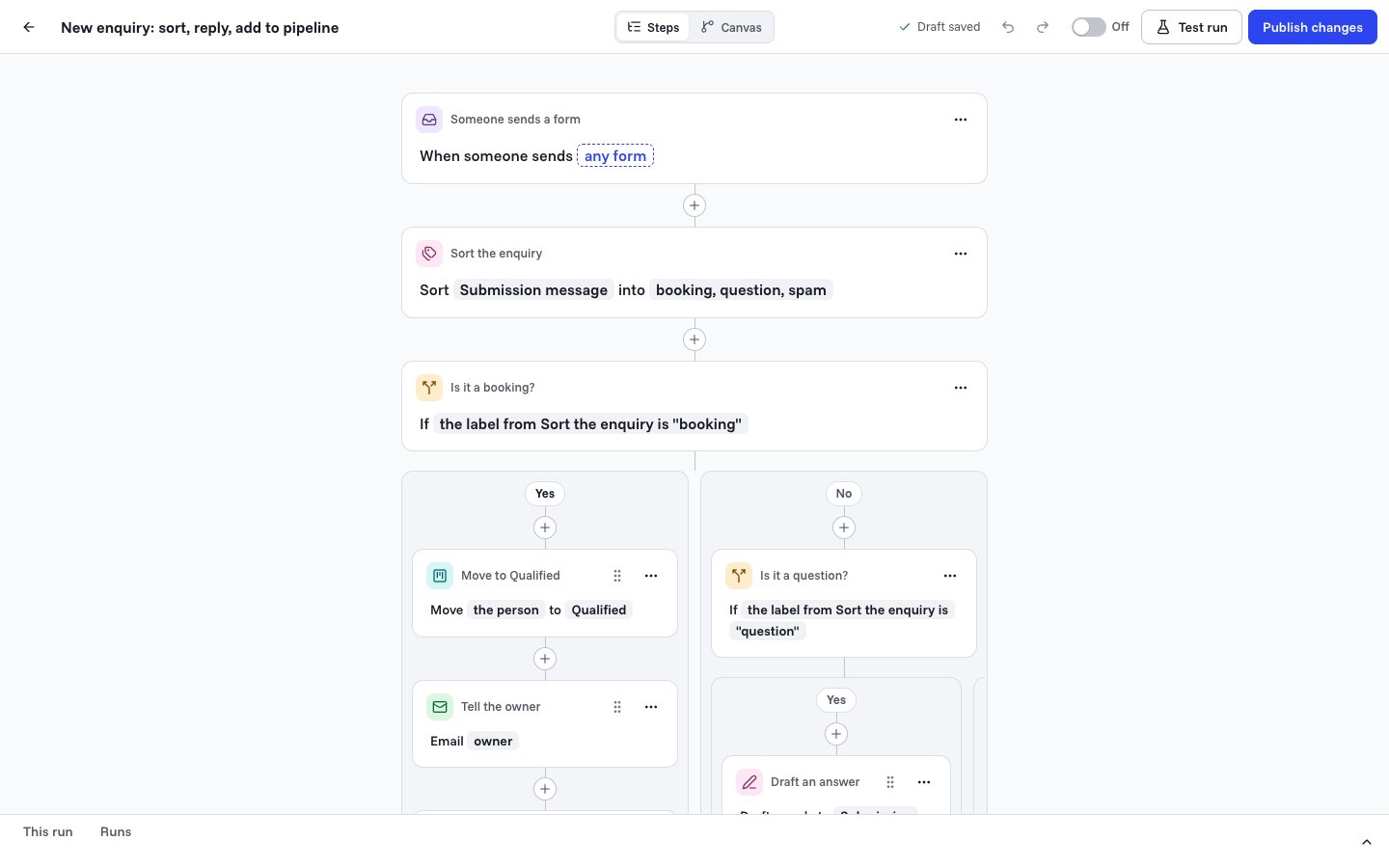
Each step reads like a sentence: "When someone sends the Contact form", "Email Sam", "Move them to Qualified". Rename a step in Step name to make it read better; later steps see what it produced under that name.
Use details from earlier steps
Most fields can include details from the trigger or an earlier step, like the person's name or their message.
- Press Insert details in a field.
- Pick the detail you want, like Name or Message. Type to search the list.
It shows as a small chip in the field, and is filled in with the real value each time the workflow runs.
More options
Some steps have settings most people never need, like extra headers or a status code. They sit under More options at the bottom of a step's settings. Opening it also shows the technical names behind each detail, for developers. Press Fewer options to fold them away again; the dashboard remembers your choice.
Decide what happens
- If splits the workflow in two: one path when the conditions match, another when they don't.
- Only continue if stops the run quietly unless the conditions match.
- Wait pauses for a while before the next step, like a day before a follow-up.
Add conditions in the step's settings. With more than one, choose whether all match or any matches.
Steps vs Canvas
The editor has two views, switched at the top:
- Steps: a simple list, top to bottom. Drag a step to reorder it, or press Alt+Up and Alt+Down.
- Canvas: the same workflow as boxes and lines, handy for If branches. Drag from a box's dot to another box to connect them.
Steps that nothing leads to are listed under Not connected yet. They don't run until you connect or delete them.
Try it before it goes live
Press Test run. It runs your unpublished changes with example data and opens the run at the bottom, so you can see what every step was given and what it did. Wait steps don't wait during a test.
If the editor shows a number of things to fix, press it to see the list. A workflow can't be published until they're fixed.
Publish and turn it on
Changes you make are saved as a draft as you go (the top bar says Draft saved). Nothing changes for the live workflow until you press Publish changes. The top bar shows Unpublished changes until you do, and Live after.
A workflow only runs while it's on. Use the switch beside Test run, or the switch in the On column of the Workflows list. You can turn a workflow on once it has been published.
When a workflow needs a key
If a step calls a service that needs a key you haven't added, the workflow says so, like "Add your fal API key to finish setting this up", with a link to the right field. Paste the key there, save, and the workflow can run. See Connections.
Let another app start a workflow
Choose Called by another app as the trigger. Give it an Address name, like new-booking, and choose Who can call it: Callers with the signing secret, Callers with an API key or Anyone. Publish it, then copy The address other apps send to into the other app.
With the signing secret, the secret is shown once when you publish. Copy it straight away; if you lose it, make a new one.
Finish with Answer the caller to send something back to the app that called. Every address is also listed under Data, API. See Data API.
AI steps
Sort with AI, Summarise with AI and Draft a reply with AI read a message and do the job for you: label it (booking, question, spam), sum it up, or write a reply from facts you give it. A drafted reply only uses what you put in What it may use.
AI steps are on Site Pro and the agency plans.
Delete a workflow
In Workflows, open the ⋯ menu on its row and choose Delete, then Delete workflow. It stops running straight away, and its run history goes with it.
Anyone on the team can edit and test a workflow's draft. Publishing, turning it on or off and deleting are for owners and admins.