
Locations and maps
Pin every place customers can visit, so the maps on your site show them and open in Google Maps.
The Locations tab holds the places customers can visit: your shop, studio, branches or office. Every map on your site shows these pins, and pressing a pin opens it in Google Maps. Change a location here and every map updates when you save.
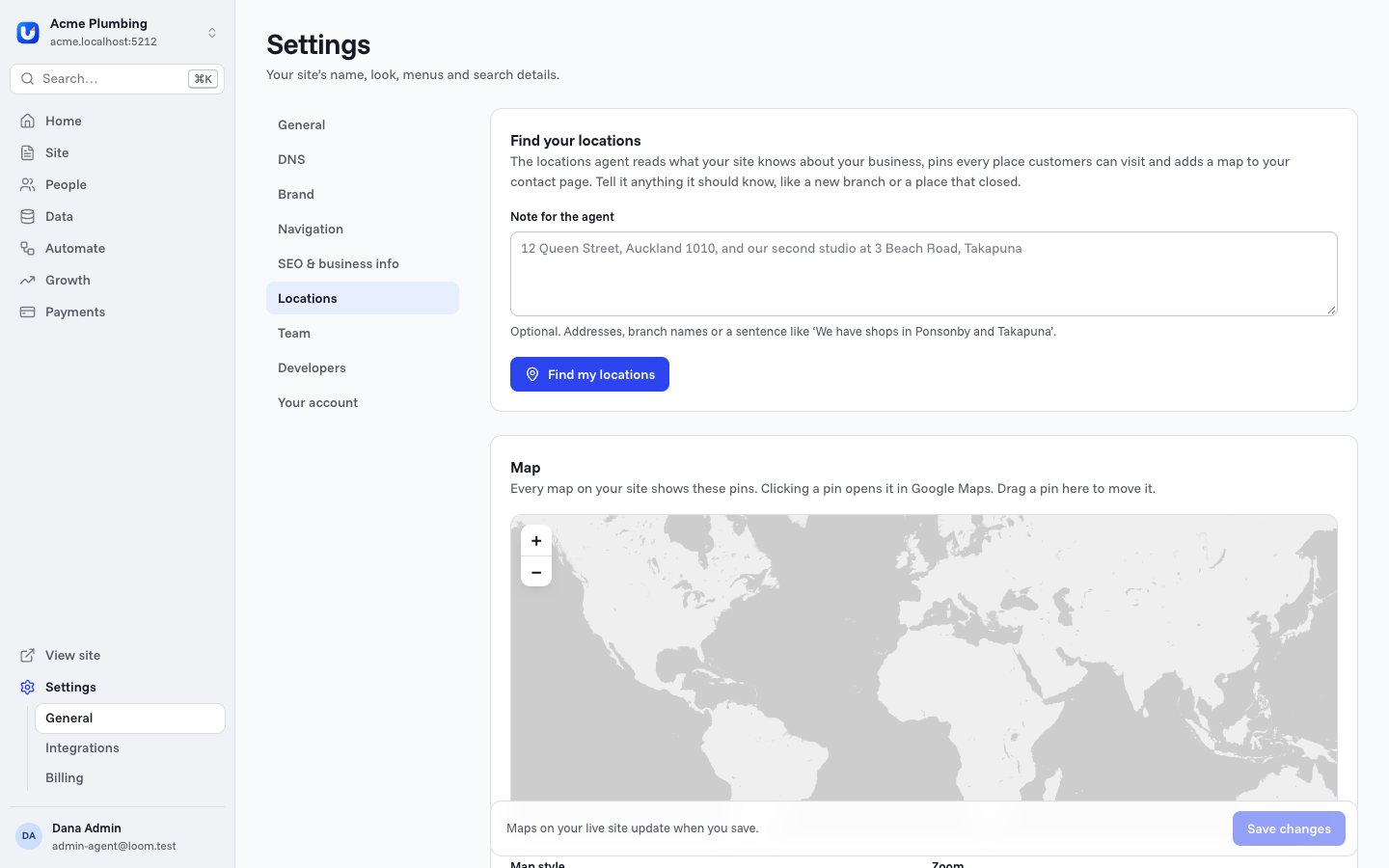
Let the agent find your locations
The locations agent reads what your site knows about your business, pins every place customers can visit and adds a map to your contact page.
- In the sidebar, open Settings, then Locations.
- Optionally, write a Note for the agent: addresses, branch names, or a sentence like "We have shops in Ponsonby and Takapuna". Mention anything new or closed.
- Press Find my locations.
Unvop tells you how many it found and which page it put a map on. If it couldn't pin a place, it lists it under Couldn't pin. Add those by hand below.
Add a location by hand
- Open Settings, then Locations, and scroll to the Locations card.
- Press Add location.
- Fill in Name and Address.
- Paste a Google Maps link to the place, such as your Google Business profile. The Latitude and Longitude fill in from the link.
- If you don't have a link, type the Latitude and Longitude yourself.
- Optionally, add a Phone and Opening hours, like "Mon to Fri, 9am to 5pm".
- Press Save changes.
A location without coordinates shows No pin yet, and Unvop won't save until every location has one.
Move a pin on the map
If a pin is slightly off, drag it on the map in the Map card. Its latitude and longitude update to match. Press Save changes.
Choose how your maps look
- Open Settings, then Locations, and find the Map card.
- Choose a Map style: Match the theme (tinted with your site's colours), Light, Dark or Standard colours.
- Set the Zoom: how close the map starts with one pin, from 3 (country) to 19 (street). With several pins, the map frames them all.
- Press Save changes.
Remove a location
Press the bin icon next to the location in the list, then Save changes.