
Runs
A diary of your workflows. See every time one ran, what started it and what each step did, and what to do when something fails.
Each time a workflow does something for you, like replying to an enquiry, that's a run. Runs writes every one down, newest first, step by step. It's the first place to look when an email didn't arrive or a contact wasn't added.
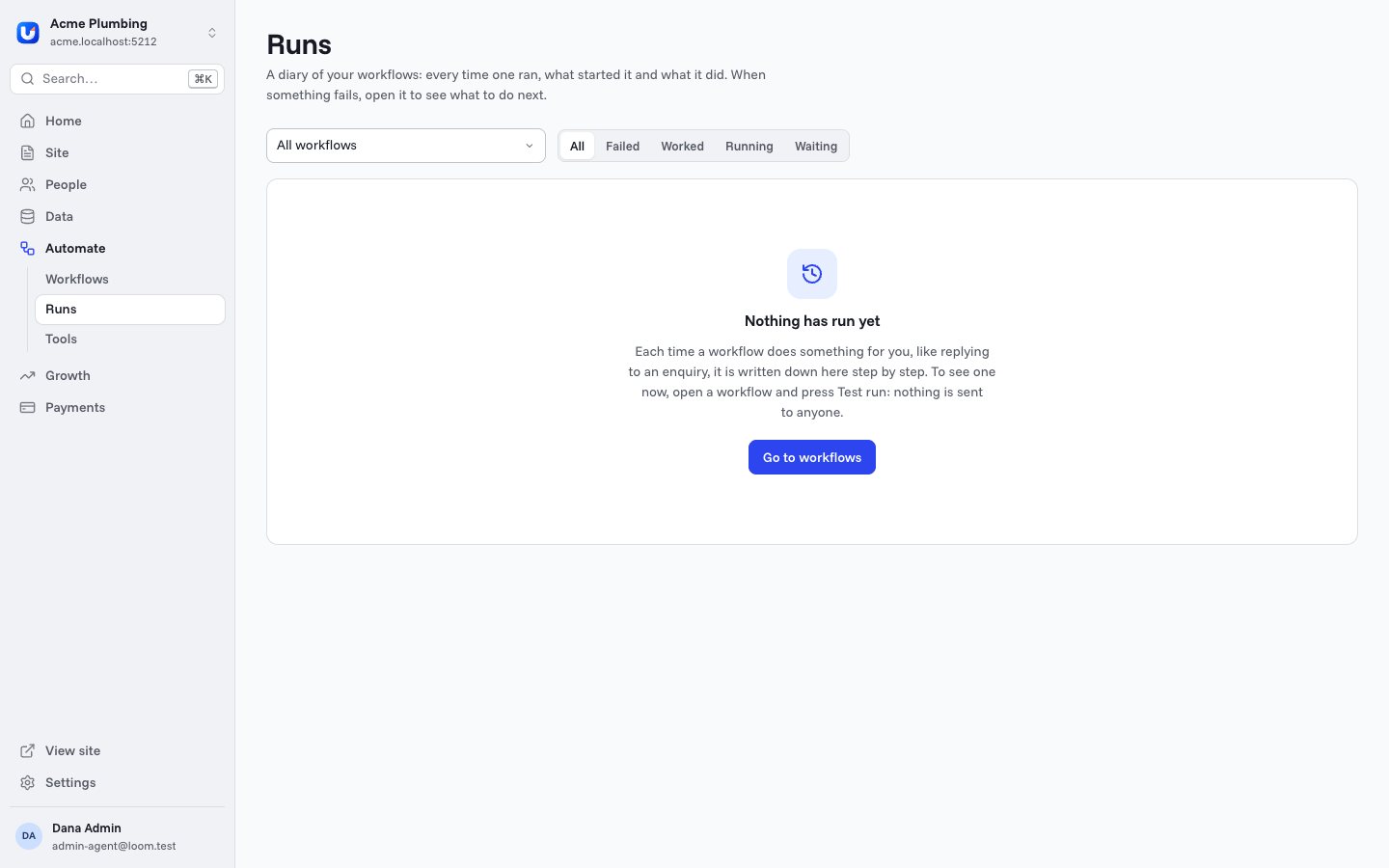
Find a run
- In the sidebar, open Automate, then Runs.
- To see one workflow's runs, choose it from All workflows.
- To narrow by result, press Failed, Worked, Running or Waiting. Press All to see everything again.
Each row shows:
- Result: Worked, Failed, Running, Waiting, Starting or Stopped.
- Workflow: which one ran, or Deleted workflow if it's since been removed.
- What happened: a short summary, like "3 steps done" or "Stopped at "Send an email"".
- When: when it started.
- Took: how long it ran.
- Started by: Something happened (a form sent, a new contact, a payment and so on), Another app called, On schedule, Button pressed or Test run.
The list refreshes by itself while any run is still going. If no runs match your filters, press Show every run.
Look inside a run
- Press a run in the list. A panel opens.
- At the top you'll see its result, what started it, when and how long it took.
- On the left, the steps are listed in the order they ran, each with its status and time. The first row is what started it.
- Press a step to see its details on the right:
- What it was given: the step's input, with any values from earlier steps already filled in.
- What it produced: its output, which later steps can use.
- Press the first row to see What started it: the form answers, the payment, what another app sent, and so on.
The panel opens on the first step that failed, so you land on the problem.
Fix a run that failed
- Filter Runs by Failed.
- Open the run. The failed step is selected, with a box that starts This step stopped. and says why.
- Under it, What to do tells you the one thing to fix, with a link to the right place, like Open Connections, Set up email or Open the workflow.
- Fix it, then run the workflow again or press Test run in the workflow to check.
Common reasons:
- A service it calls needs its key. Add it under Connections. See Connections.
- Email isn't set up yet. See Integrations.
- A detail the step needed was empty, like a form with no email field. Check What it was given.
- Another service didn't answer properly. That's often temporary: run it again in a few minutes.
What each step status means
| Status | Means |
|---|---|
| Done | The step finished. |
| Failed | The step stopped, and the run stopped with it. |
| Skipped | The run took another path, or an earlier step stopped it. |
| Waiting | A Wait step is counting down. The run picks up here when the wait is over. |
| Running | It's working on it now. |
Test runs
Press Test run in a workflow to try your unpublished changes with example data. The run shows up here, started by Test run, and in the panel at the bottom of the workflow. Wait steps don't wait in a test.