
Menus, header and footer
Edit the links across the top of every page, how the menu folds on phones, and your footer.
The Navigation tab controls what appears on every page: the header menu at the top, the menu people open on phones, and the footer at the bottom. When you press Save changes, your menu and footer are saved as a draft. Your live site keeps the old ones until you publish.
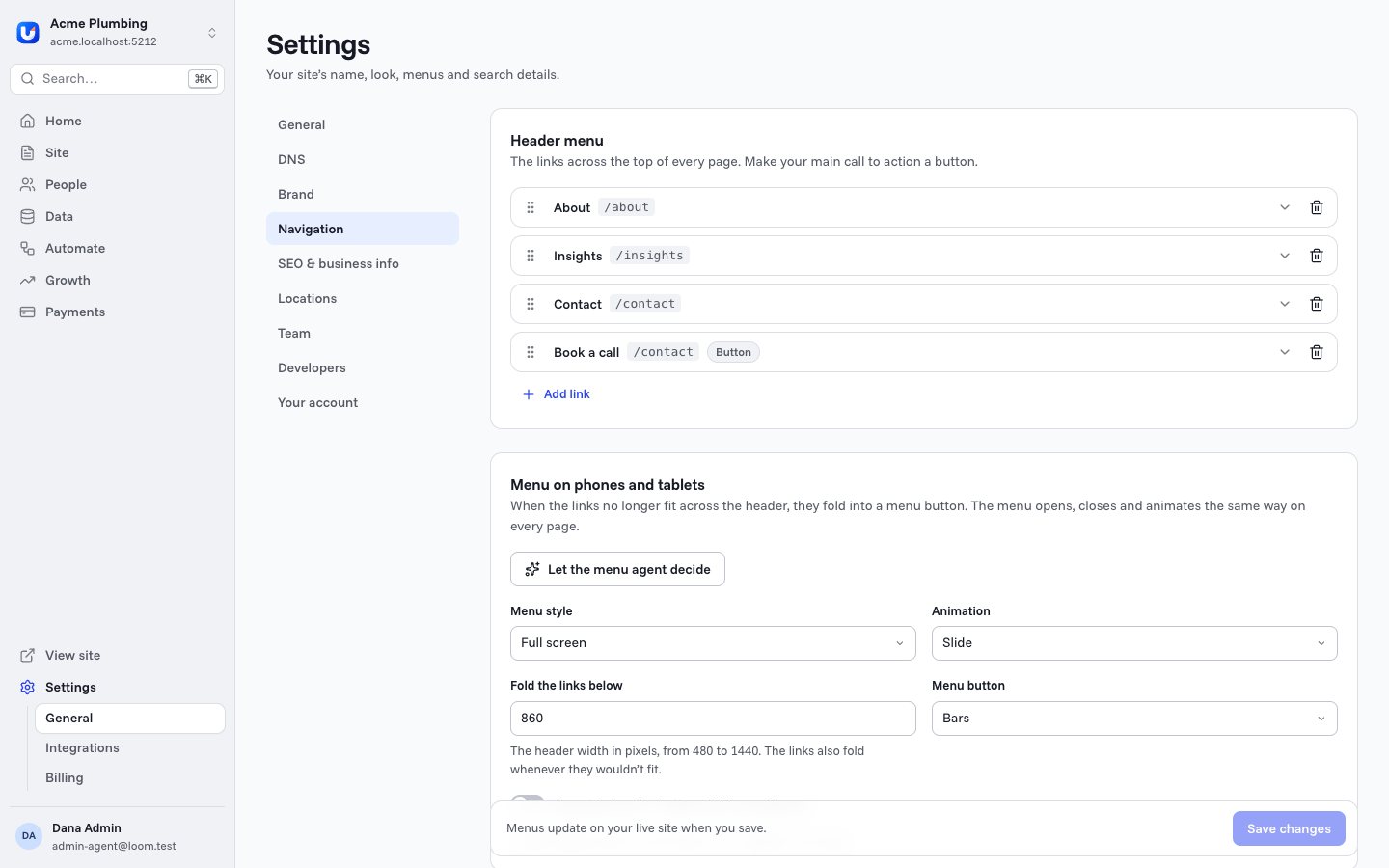
Add a link to the header menu
- In the sidebar, open Settings, then the Navigation tab.
- Under Header menu, press Add link.
- Fill in Label: the words people see.
- Fill in Links to with one of:
- a page on your site, like
/pricing - a full web address, like
https://example.com contact:email,contact:phoneorcontact:whatsappto use your details from General
- a page on your site, like
- Choose a Style: Link, or Button for your main call to action.
- Press Save changes.
The header holds up to eight links.
Reorder, edit or remove a link
Each link in the list shows its label, where it goes and a Button tag if it's a button.
- To edit a link, press it to open it.
- To move a link, drag it by the handle on its left.
- To remove a link, press the bin icon on its right.
Press Save changes when you're done.
Choose how the menu works on phones
When the links no longer fit across the header, they fold into a menu button. Set how that menu looks under Menu on phones and tablets.
- Open Settings, then Navigation.
- Choose a Menu style: Side drawer, Full screen or Drops down under the header.
- For a side drawer, choose where it opens from in Drawer opens from: The right or The left.
- Choose an Animation: Slide, Fade or None.
- Set Fold the links below: the header width, in pixels, where the links fold into the menu. They also fold whenever they wouldn't fit.
- Choose the Menu button: Bars, or The word "Menu".
- Press Save changes.
Two switches finish it off:
- Keep the header button visible on phones keeps your button link next to the menu button. It's only available when one of your links is a button.
- Show only the menu button on wide screens too hides the links on computers as well, for a minimal header.
Let the menu agent decide
Press Let the menu agent decide and Unvop picks a menu design that suits your site, then saves it as a draft and tells you why it chose it. Publish to put it live.
Edit the footer
- Open Settings, then Navigation, and scroll to Footer.
- Write a Short description: a line or two about your business.
- Under Link columns, press Add column (up to four). Give each a Column title, then press Add link inside it and fill in Label and Links to, the same way as the header.
- Fill in the Legal line, like "© 2026 Your Business Ltd. All rights reserved."
- Press Save changes.
Put your menu changes live
A bar at the top of the tab says Unpublished site changes while changes are waiting.
- Press Preview to see your homepage with the new menu and footer. Only you can see it.
- Press Publish site changes to put them on your live site. Publishing any page in the editor does the same.
Press Discard, then Discard changes, to go back to the menu your live site shows. History lists every menu and style you published; press Restore beside one, then publish it, to bring it back.