
Logo, colours and fonts
Change your logo, browser icon and your theme's colours and type for the whole site at once.
The Brand tab holds the things that make every page look like yours: the logo, the small icon in the browser tab, and your theme's colours and type. Change them here and every page follows. When you press Save changes, they're saved as a draft: your live site keeps its current look until you publish.
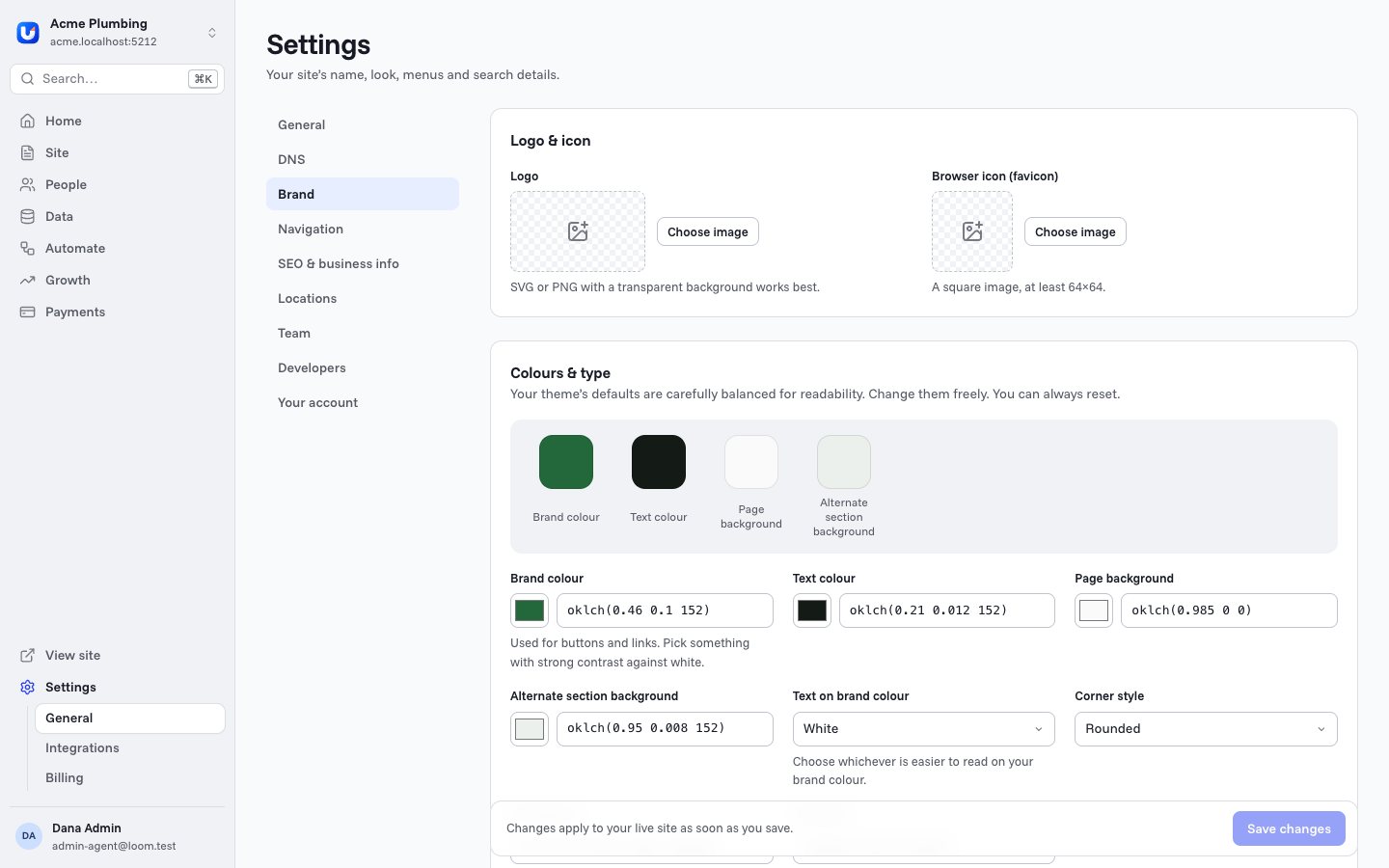
Change your logo
- In the sidebar, open Settings, then the Brand tab.
- Under Logo & icon, use Logo to upload a new image or pick one from your media.
- Press Save changes.
Change the browser icon
The browser icon (favicon) is the small square in the browser tab and bookmarks.
- Open Settings, then Brand.
- Under Browser icon (favicon), upload or pick a square image, at least 64×64.
- Press Save changes.
Change your colours
- Open Settings, then Brand.
- Under Colours & type, find the colour you want. Each one has a label and a note on where it's used.
- Press the colour square to pick a new colour, or type a value like
#1f6febin the box next to it. - The preview at the top of the card shows your main colours side by side as you change them.
- Press Save changes.
Change the type
Below the colours are your theme's other settings, such as fonts. Pick a new option from the list, or type a value, then press Save changes. The options depend on your theme.
Go back to the theme's defaults
- To reset one setting, press the reset arrow next to it.
- To reset every colour and font, press Reset all at the top of Colours & type.
Then press Save changes. Nothing changes on your live site until you publish.
Put your changes live
After you save, a bar at the top of the tab says Unpublished site changes and which parts are waiting.
- Press Preview to see your homepage with the new look. Only you can see it.
- Press Publish site changes to put it on your live site. Publishing any page in the editor does the same.
To throw the changes away instead, press Discard, then Discard changes. Your settings go back to what your live site shows. To bring back an earlier look you published, press History, then Restore beside it, and publish.