
Site name and contact details
Set your site's name, tagline, email, phone and WhatsApp, the details every page and button can use.
The General tab in Settings holds the basics: what your site is called, a one-line tagline, and how people reach you. Buttons and menu links can point at your contact details, so when your number changes you change it here once and every link follows.
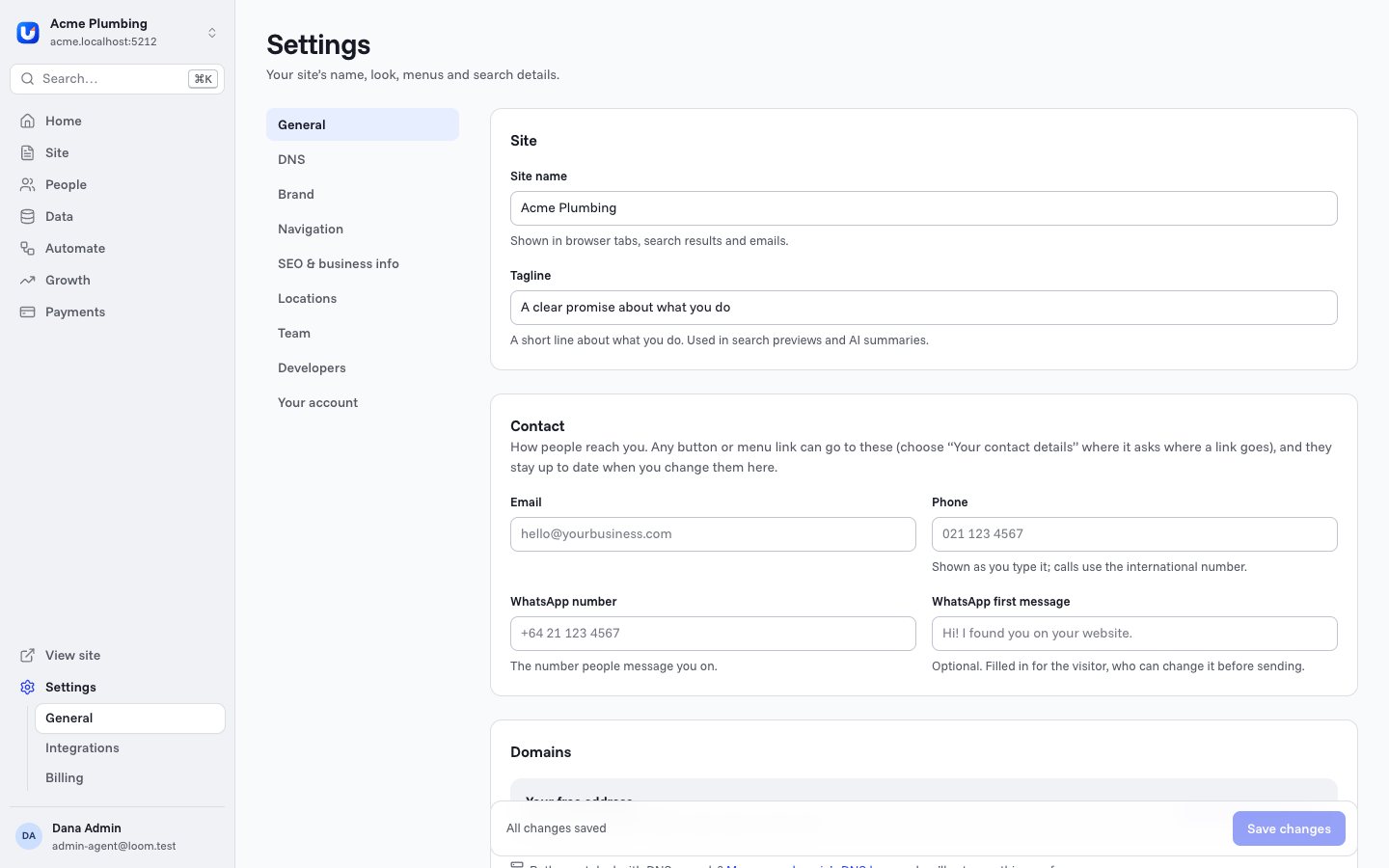
Change your site name or tagline
- In the sidebar, open Settings. You land on General.
- Under Site, edit Site name. It shows in browser tabs, search results and emails.
- Edit Tagline: a short line about what you do. Search previews and AI summaries use it.
- Press Save changes at the bottom.
Add your email, phone and WhatsApp
- Open Settings, then General.
- Under Contact, fill in Email and Phone. Type the phone number the way you want it shown. Underneath, Unvop shows the international number calls will use.
- Fill in WhatsApp number with the country code, like +64 21 123 4567. If it's the same as your phone, press Same as phone.
- Optionally, write a WhatsApp first message. It's filled in for the visitor, who can change it before sending.
- Press Save changes.
Point a button or menu link at your contact details
Any button or menu link can go to your email, phone or WhatsApp instead of a page. When it asks where a link goes, choose Your contact details. In menus, type or pick contact:email, contact:phone or contact:whatsapp in Links to. See Menus, header and footer.
Because the link reads from this tab, a new phone number updates every "Call us" button at once.
Connect your own domain
The Domains card on this tab shows your free address and lets you connect a domain you own. It has its own page: Connect your own domain.