
SEO and business info
Control how your site looks in Google and when shared, and tell search engines and AI assistants who you are.
The SEO & business info tab sets how your pages appear in search results and when someone shares a link, and gives Google, LinkedIn and AI assistants like ChatGPT and Claude the facts they need to describe your business accurately.
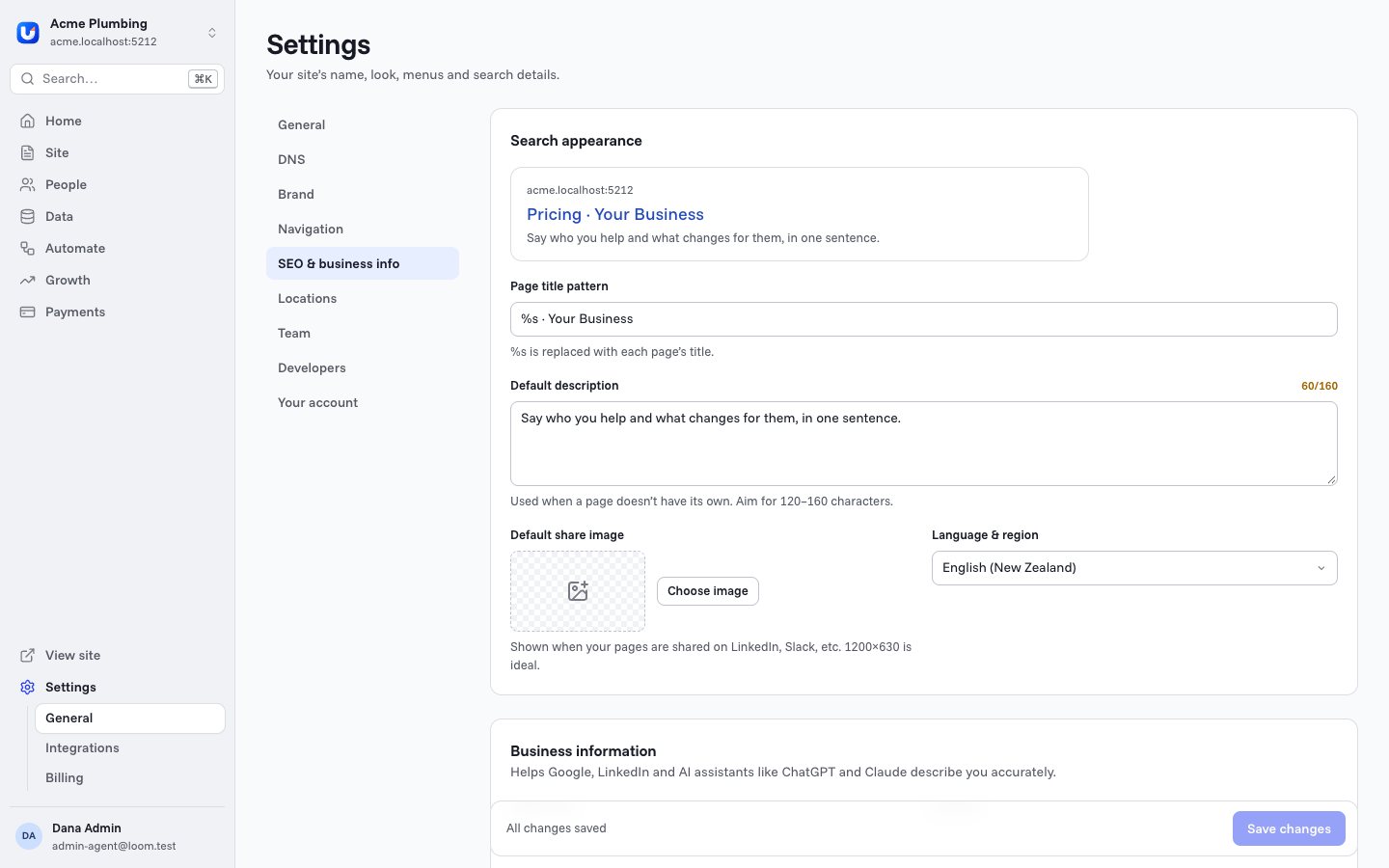
Set how your pages look in Google
- In the sidebar, open Settings, then SEO & business info.
- Under Search appearance, set the Page title pattern.
%sis replaced with each page's title, so%s · Your Businessturns your pricing page into "Pricing · Your Business". - Write a Default description. It's used for any page that doesn't have its own. Aim for 120 to 160 characters: the counter turns orange when it's too short or too long.
- Press Save changes.
The preview at the top of the card shows what a search result for your pricing page would look like as you type.
Choose the image shown when a link is shared
When someone shares your site on LinkedIn, Slack or in a message, a preview card appears with an image.
- Open Settings, then SEO & business info.
- Under Default share image, upload or pick an image. 1200×630 is ideal.
- Press Save changes.
Set your language and region
Choose your Language & region, like English (New Zealand) or English (United Kingdom), then press Save changes. Search engines use it to show your site to the right people.
Add your business information
- Open Settings, then SEO & business info, and scroll to Business information.
- Fill in Legal name and Founder.
- Write What you do in one or two plain sentences.
- Fill in City / region and a two-letter Country code, like
NZorGB. - Under Social profiles, add the full web address of each profile, like your LinkedIn page, starting with
https://. - Press Save changes.