
The editor
A tour of the page editor, where you change your site on the page itself, exactly as visitors see it.
The editor shows your page exactly as visitors see it, and lets you change it right there: click words to type, click a picture to swap it, add and move sections. Everything saves as a draft as you go, and nothing goes live until you press Publish.
To open it, click a page's title in Pages, or Open editor under Continue editing on your Home screen.
Find your way round
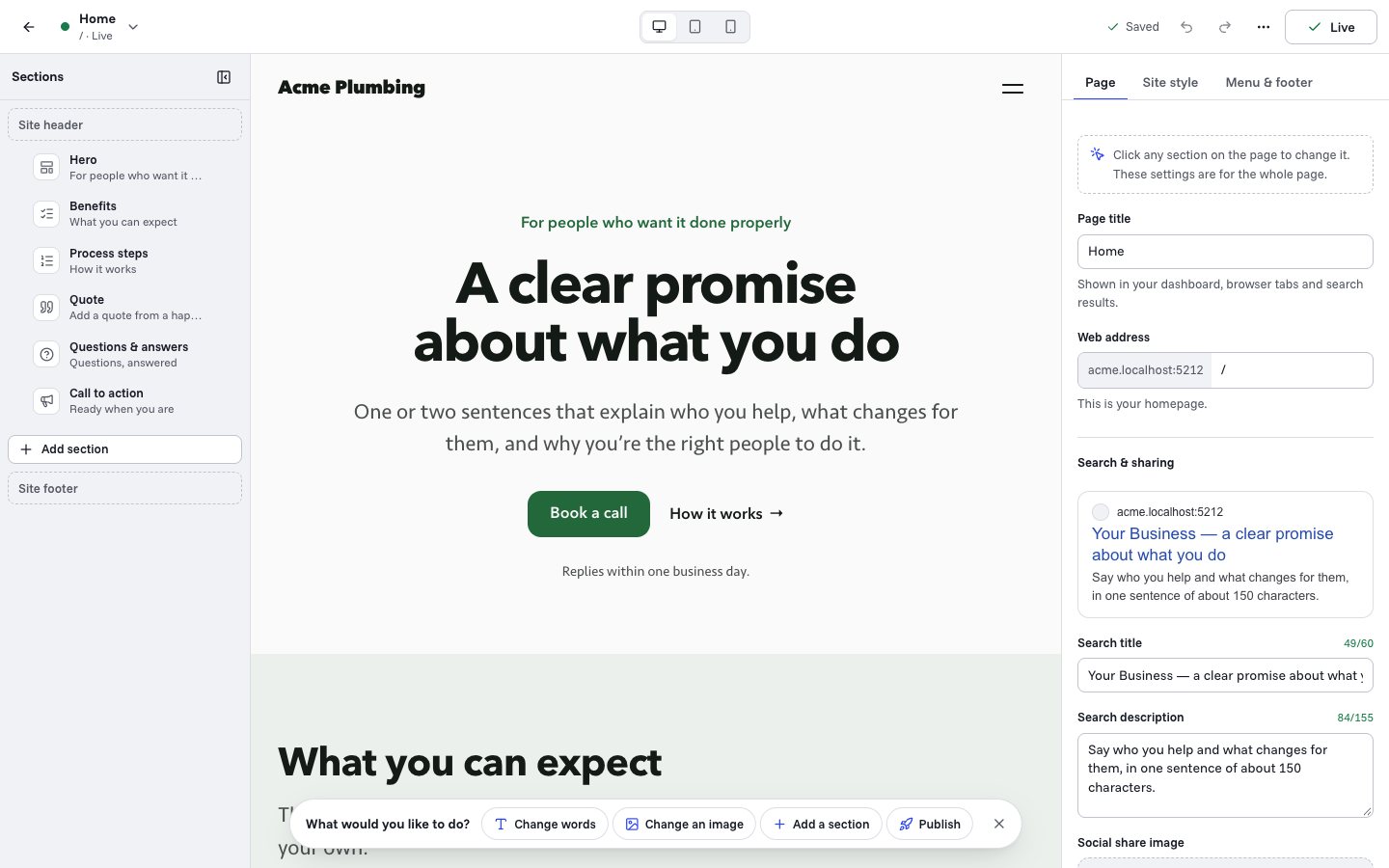
The editor has four parts.
The top bar, from left to right:
- The back arrow returns to Pages.
- The page name, with its address and state (Not live yet, Live, or Live, with unpublished changes). Click it to Jump to a page or Create a new page.
- Computer, Tablet and Phone switch the preview size. See Phone view.
- The save state: Saving…, Saved, or Not saved. Try again.
- Undo and Redo.
- More options (⋯): Preview in a new tab, Earlier versions, Show me around again and Keyboard shortcuts.
- Publish, with a count of changes waiting. It reads Live when everything is published.
The Sections list on the left shows every section on the page, top to bottom, between Site header and Site footer. Click one to select it, drag to reorder, or use the eye to hide it. Add section adds one at the end. Hide the list with the panel button at its top; bring it back with Show sections in the top bar.
The page in the middle is your live page, editable. Hover a section to see its outline and the + buttons for adding sections; click it to select it.
The panel on the right changes with what you select:
- With nothing selected, it has three tabs: Page (title, address, search and sharing), Site style (colours and fonts for every page) and Menu & footer (links on every page).
- With a section selected, it shows that section's settings. The back arrow at its top returns to the page settings.
Change words and pictures
Click any words on the page and type. Click a picture to replace it. The full steps are in Edit text and images.
Work with sections
Select a section and a small toolbar appears above it with Move up, Move down, Duplicate, Hide and Delete. See Sections.
Get started quickly
The first time you open the editor, a short tour shows you the three things that matter: click text to edit, use + to add a section, and Publish when you're ready. Replay it any time from More options, then Show me around again.
A What would you like to do? strip also offers Change words, Change an image, Add a section and Publish. It goes away once you use one, or press its cross.
Keyboard shortcuts
| Keys | What it does |
|---|---|
| ⌘Z | Undo |
| ⌘⇧Z | Redo |
| ⌘S | Save now |
| Esc | Stop editing text, or deselect the section |
| ⌥↑ / ⌥↓ | Move the selected section up or down |
| Del | Delete the selected section |
| ⌘B / ⌘I | Bold or italic, inside longer text |
On Windows, use Ctrl for ⌘ and Alt for ⌥. Ctrl Y also redoes.
Leave the editor
Press the back arrow at the top left. Your page changes are already saved as a draft.