
Sections
Add, move, copy, hide and remove the sections that make up a page, and change a section's settings.
A page is a stack of sections: an opening, a list of services, some reviews, a contact form. In the editor you can add new ones, put them in a different order, copy, hide or remove them, and change each one's layout and settings.
Add a section
- In the editor, hover between two sections and press Add section here, or press Add section at the bottom of the Sections list.
- Add a section opens, with a live preview of each layout in your site's style.
- Browse by group on the left, or type in the search box (for example "pricing", "photo" or "form").
- Click the one you want. It's added where you chose, and you can click its words to change them.
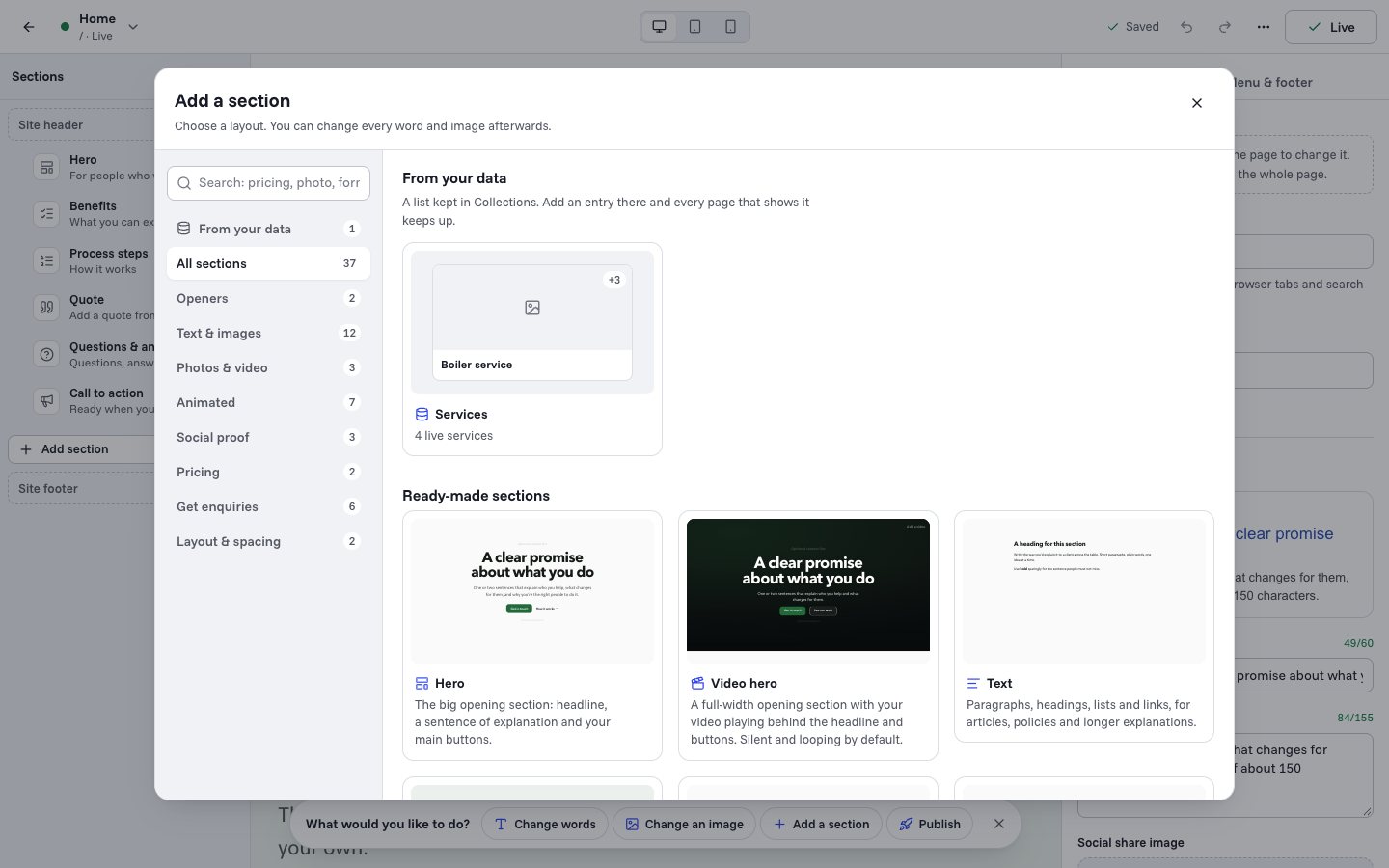
The groups on the left:
- This site's sections: sections designed for your site when it was built. They arrive looking exactly like the originals, so you only change the words and pictures. Use these first.
- From your data: a section that shows one of your collections, such as a menu or the team. See Show a collection on a page.
- Recently used, then All sections, then the standard section types by group: Openers, Text & images, Photos & video, Animated, Social proof, Pricing, Get enquiries and Layout & spacing.
Every standard type is listed in Section types.
Move a section
Any of these work:
- In the Sections list, drag the section by its handle.
- On the page, select the section and press Move up or Move down in its toolbar, or drag it by the grip at the toolbar's left.
- Select it and press ⌥↑ or ⌥↓ (Alt on Windows).
Copy a section
Select the section and press Duplicate in its toolbar, or Duplicate at the bottom of its settings. The copy appears right below and is selected.
Hide a section
Hiding keeps a section in your draft without showing it to visitors. It's handy for seasonal offers or something you're still writing.
- In the Sections list, press the eye beside it, or
- select the section and press Hide in its toolbar.
Hidden sections are marked Hidden from visitors on the page. Press the eye or Show to bring one back. As with any change, publish for it to take effect on the live site.
Delete a section
- Select the section.
- Press Delete in its toolbar, or press Del on your keyboard.
A message confirms it's gone, with Undo if you change your mind. You can also press ⌘Z.
Change a section's settings
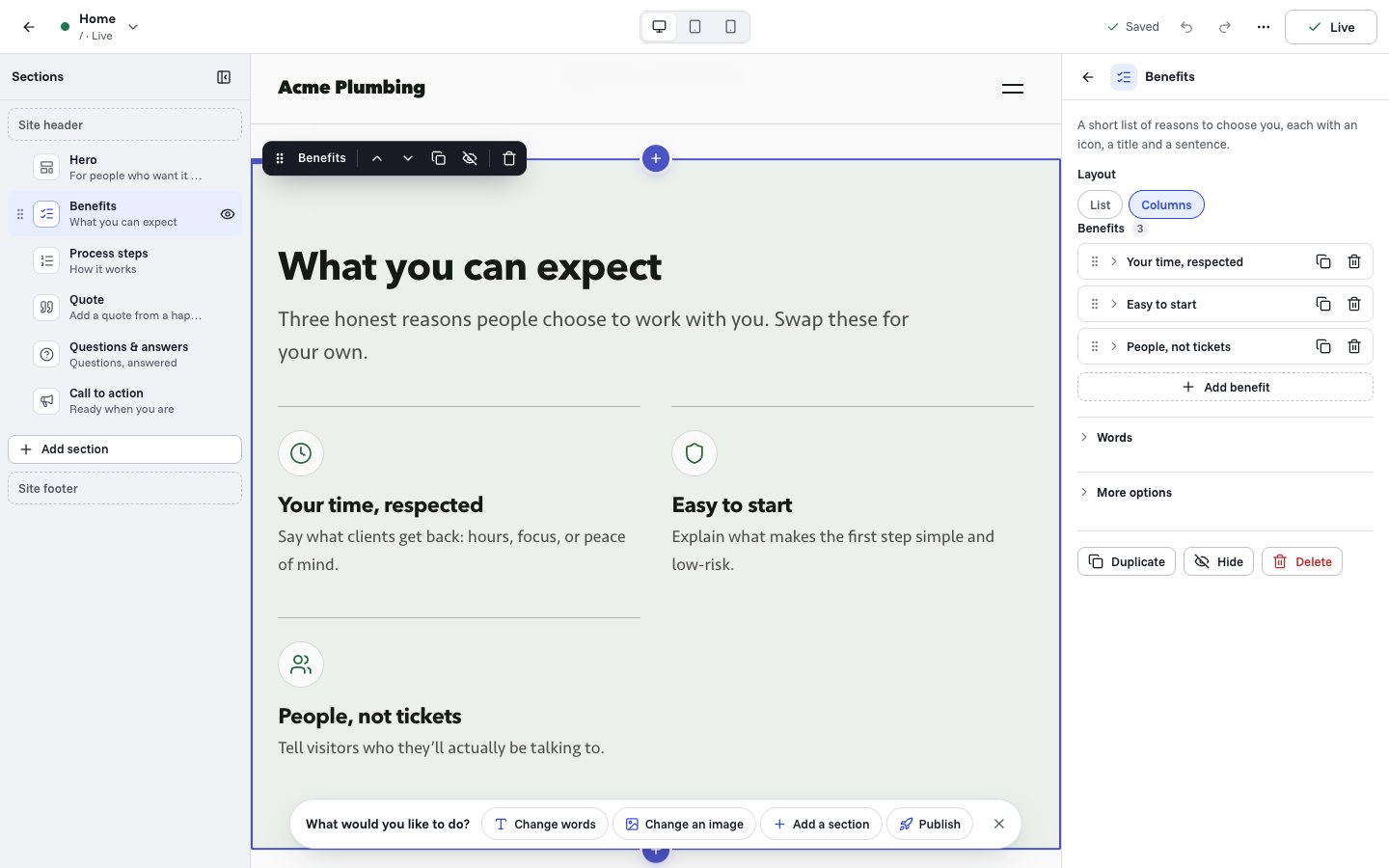
Click a section to select it. The right-hand panel shows its settings, in groups you open and close:
- A short description of what the section is for.
- Layout, for section types with more than one arrangement.
- The section's own settings, such as how many items to show or where the image sits.
- Words: every piece of text in the section, if you'd rather type in a form.
- Colours and Motion, where the section has them. See Styles and colours.
- More options: Hide this section, and Section link name.
Link straight to a section
A section link name lets buttons and menu links jump to that section, for example to your prices.
- Select the section.
- Open More options.
- Under Section link name, type a short name such as
pricing.
The section now shows under A section on this page when you set where a button goes. See Edit text and images.
Edit the header and footer
The site header and footer are the same on every page. Click Site header or Site footer in the Sections list to open them in the Menu & footer tab. See Menus, header and footer.