
A tour of the dashboard
Find your way round the sidebar, switch between sites, search with ⌘K and read your Home overview.
The dashboard is where you run your site. Everything sits in a sidebar on the left, grouped into workspaces, with your Home overview first. This page shows where things are and the shortcuts that get you there faster.
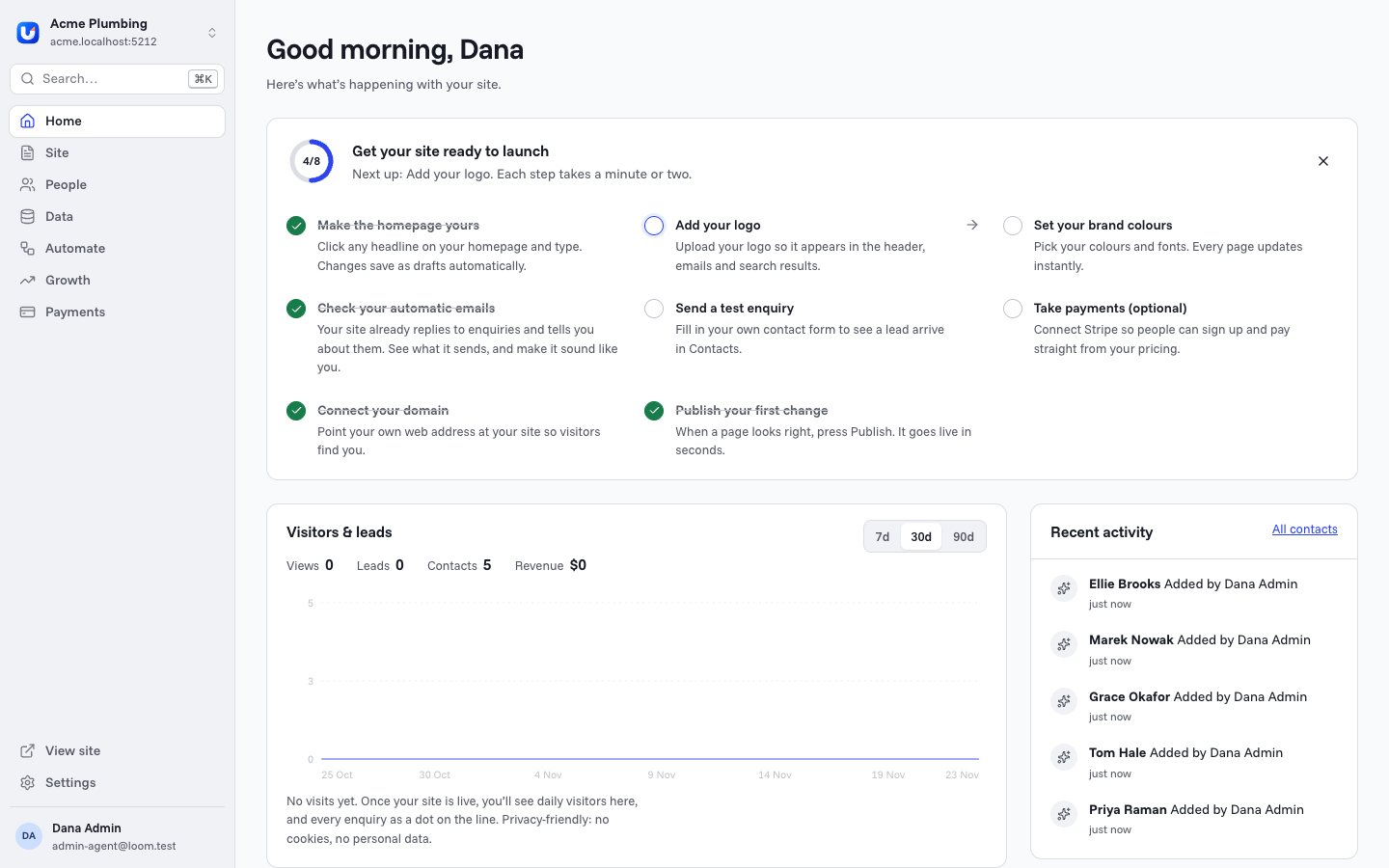
The sidebar
Each row in the sidebar is a workspace. The one you're in opens to show its screens.
| Workspace | Screens | What it's for |
|---|---|---|
| Home | Overview | How the site is doing, and what's happened lately |
| Site | Pages, Articles, Media | Everything visitors see |
| People | Inbox, Contacts, Pipeline, Forms | Enquiries and customers |
| Data | Collections, Connections, API | Your lists, such as a menu, rooms or the team |
| Automate | Workflows, Runs, Tools | Follow-up the site does for you |
| Growth | Overview, Google search | Visitors and how people find you |
| Payments | Payments | Money taken through the site |
| Settings | General, Integrations | Your address, brand, menus, team and the outside services you connect |
At the foot of the sidebar you'll also find View site, which opens your live site in a new tab, and your name, which opens your account menu.
When you return to a workspace, it opens on the screen you last used there.
Switch between sites
If you look after more than one site, the site name at the top of the sidebar is a switcher.
- Click the site name (under it is the site's web address).
- Pick another site from the list. A tick marks the one you're on.
The dashboard reloads that site's pages, contacts and data. To build another site, choose New site from a description from the same menu.
Search and jump anywhere with ⌘K
The command palette finds screens, pages, articles and contacts by name, and starts common tasks.
- Press ⌘K on a Mac or Ctrl K on Windows, or click Search… in the sidebar.
- Type a few letters: a page title, a contact's name or email, or a screen such as "forms".
- Use the arrow keys to move, ↵ to open, esc to close.
It can also start these tasks: Create a new page, Write a new article, Add a contact, Create a form and Create a collection.
Keyboard shortcuts
| Keys | What it does |
|---|---|
| ⌘K | Open or close search |
| ⌘1 | Home |
| ⌘2 | Site |
| ⌘3 | People |
| ⌘4 | Data |
| ⌘5 | Automate |
| ⌘6 | Growth |
| ⌘7 | Payments |
On Windows, use Ctrl instead of ⌘. The editor has its own shortcuts: see The editor.
Read your Home overview
Home greets you and shows how the site is doing:
- Get your site ready to launch: a checklist for a new site, such as Add your logo, Connect email, Send a test enquiry and Connect your domain. Each step links to the place you do it. Hide it with the cross when you're done with it.
- Visitors & leads: page views and form enquiries over time, with totals for Views, Leads, Contacts and Revenue. Switch between 7d, 30d and 90d.
- Top pages and Where visitors come from, once you have visits.
- Continue editing: the page or article you were last working on that has changes not yet live. Press Open editor to carry on.
- Recent activity: new enquiries, payments, notes and messages, newest first. All contacts opens your contact list.
On a phone
Below about 900 pixels wide, the sidebar folds away. A bar along the bottom has Home, Inbox, Contacts, Pages and Menu; Menu opens the full sidebar. The bar at the top holds the site switcher and a search button. See The app on your phone.