
Articles
Write and publish articles that show what you know and help people find you, and choose where they live on your site.
Articles are posts in your own voice: advice, news, case studies, answers to the questions customers ask. Each one gets its own page, and each is another way for the right people to find you on Google, on social media and in AI answers.
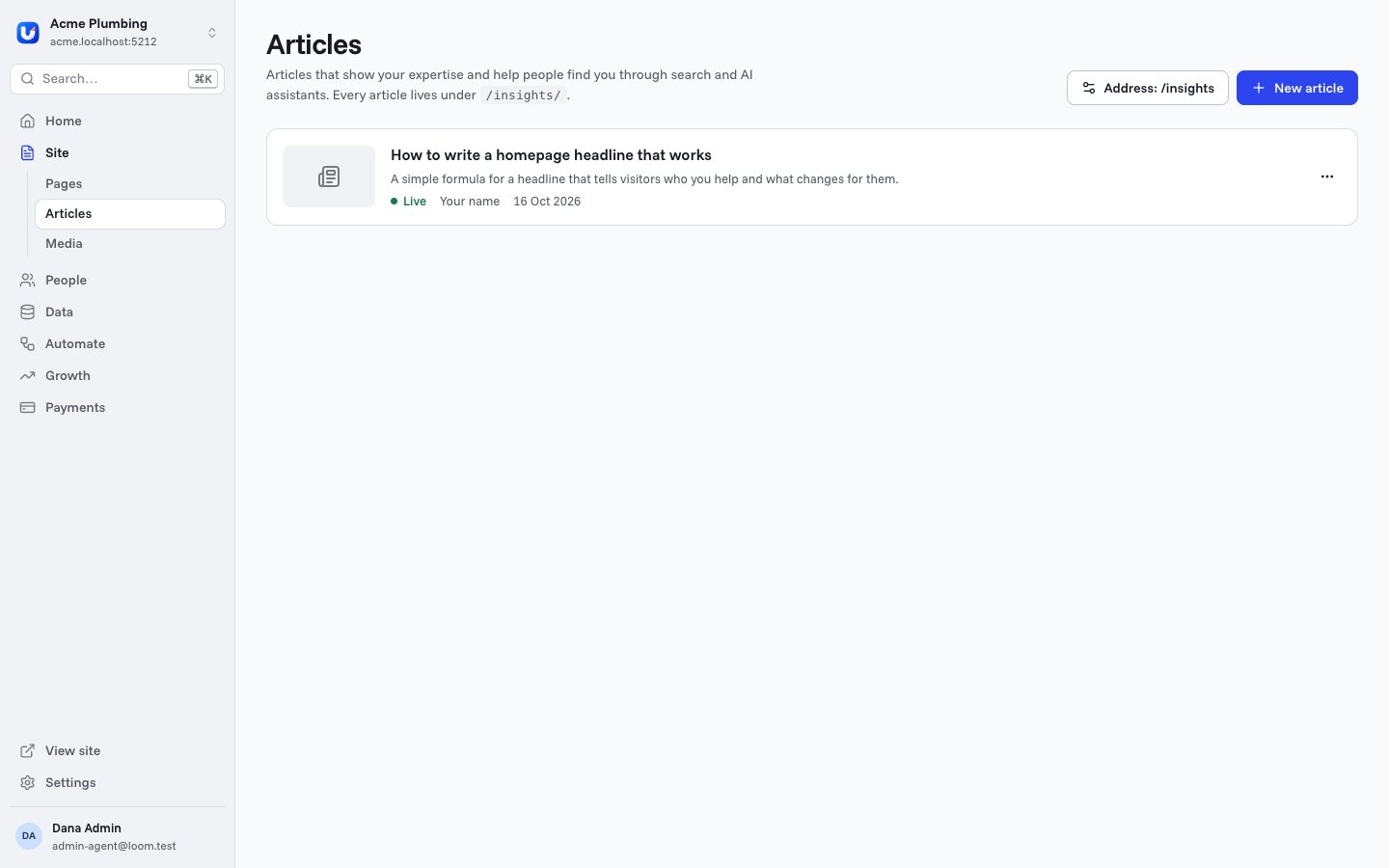
See your articles
In the sidebar, open Site, then Articles. Each article shows its cover picture, title, summary, status (Draft, Live or Unpublished changes), author and date, newest first.
Write an article
- In Articles, press New article.
- Type a working title. You can change it later.
- Check the Web address. It always starts with your articles address, such as
/blog/. - If your theme offers them, pick a starting layout under Start from.
- Press Create & open editor.
- Write the article on the page, the same way you edit any page. See Edit text and images.
Add the summary, author, cover and topics
- In the editor, make sure no section is selected (press Esc) and open the Page tab on the right.
- Change the title under Post title if you need to.
- Under Article, fill in:
- Summary: one or two sentences shown in article lists and previews.
- Author and Role.
- Cover image: the picture shown with the article in lists.
- Topics: separated by commas.
- The panel also shows the reading time, worked out for you.
Under Search & sharing, you can set the Search title, Search description and Social share image, as for any page.
Publish an article
Press Publish at the top right, then Publish page. Like pages, articles stay private drafts until you publish them, and later changes wait for you to press Publish again. See Publish your site.
Choose where your articles live
All your articles sit under one address, such as /blog or /press. That page lists them, and every article ends with a link back to it.
- In Articles, press the Address button at the top (it shows the current address).
- Under Address, type the new one, for example
news. - Under Name, type what the "Back to…" link at the end of each article should say.
- Press Save.
Every article moves to the new address, and old links redirect to the new ones.
Show articles on other pages
To list articles on your homepage or elsewhere, add one of these sections:
- Latest articles lists your newest articles automatically.
- Article link shows the articles you choose.
See Sections.
Copy, unpublish or delete an article
Open the article's menu (the ⋯ button on its row) and choose Duplicate, Unpublish or Delete. These work the same way as for pages: see Pages.