
Media
Upload photos, videos and documents, describe your images, copy a file's link and remove files you no longer use.
Media is your site's library of photos, videos, graphics and PDFs. Everything you upload here, or from the editor, is available on every page. Pictures made for your site when it was built are here too.
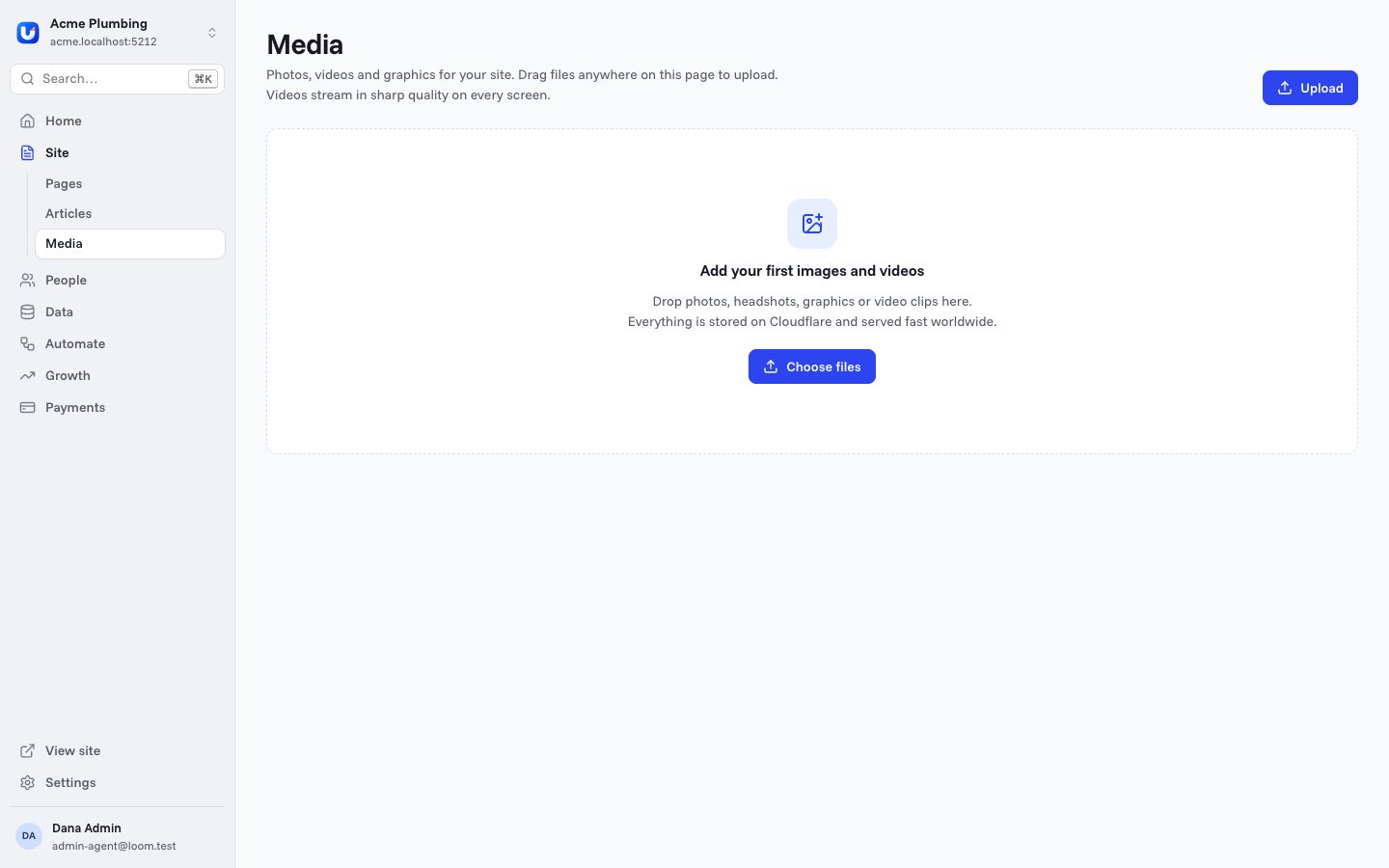
Upload files
- In the sidebar, open Site, then Media.
- Press Upload and choose one or more files, or drag files from your computer anywhere onto the screen.
Each upload shows its progress. You can upload images (JPG, PNG, WebP, GIF or SVG), videos and PDFs.
Upload a video
Upload a video the same way. Unvop streams it in sharp quality on every screen, so it may show as being prepared for a short while after it uploads. You can use it once it's ready.
To put a video on a page, add a Video or Video hero section in the editor and choose it there. See Section types.
Describe your images
A description (alt text) is read aloud to people using screen readers and helps search engines understand your pictures. Images without one are marked No description.
- Click an image to open Image details.
- Under Description (alt text), describe what's in the picture in a sentence, such as "Sarah recording an interview in a sunlit studio".
- Press Save.
For a video, the field is Title: a short name such as "A tour of our Petone workshop".
Find a file
Type in Search by name or description, or filter with All, Images, Videos or Needs description.
Copy a file's link
- Click the file.
- Under Link, press Copy.
Use the link to share a PDF, such as a menu or price list, from a button on your site or in an email.
Replace a picture on a page
Files in the library can't be swapped in place. To change a picture on your site, upload the new one, then replace it on the page in the editor. See Edit text and images.
Delete a file
- Click the file.
- Press Delete, then Delete file.