
Emails
See every email your site sends for you, switch each one on or off, and design them the way you edit your site.
Your site sends some emails for you, with no setup: a reply to everyone who sends a form, an alert to you about each enquiry, receipts for payments and a welcome for newsletter sign-ups. Emails lists them all, says in plain words when each one goes out, and lets you change how they look and read.
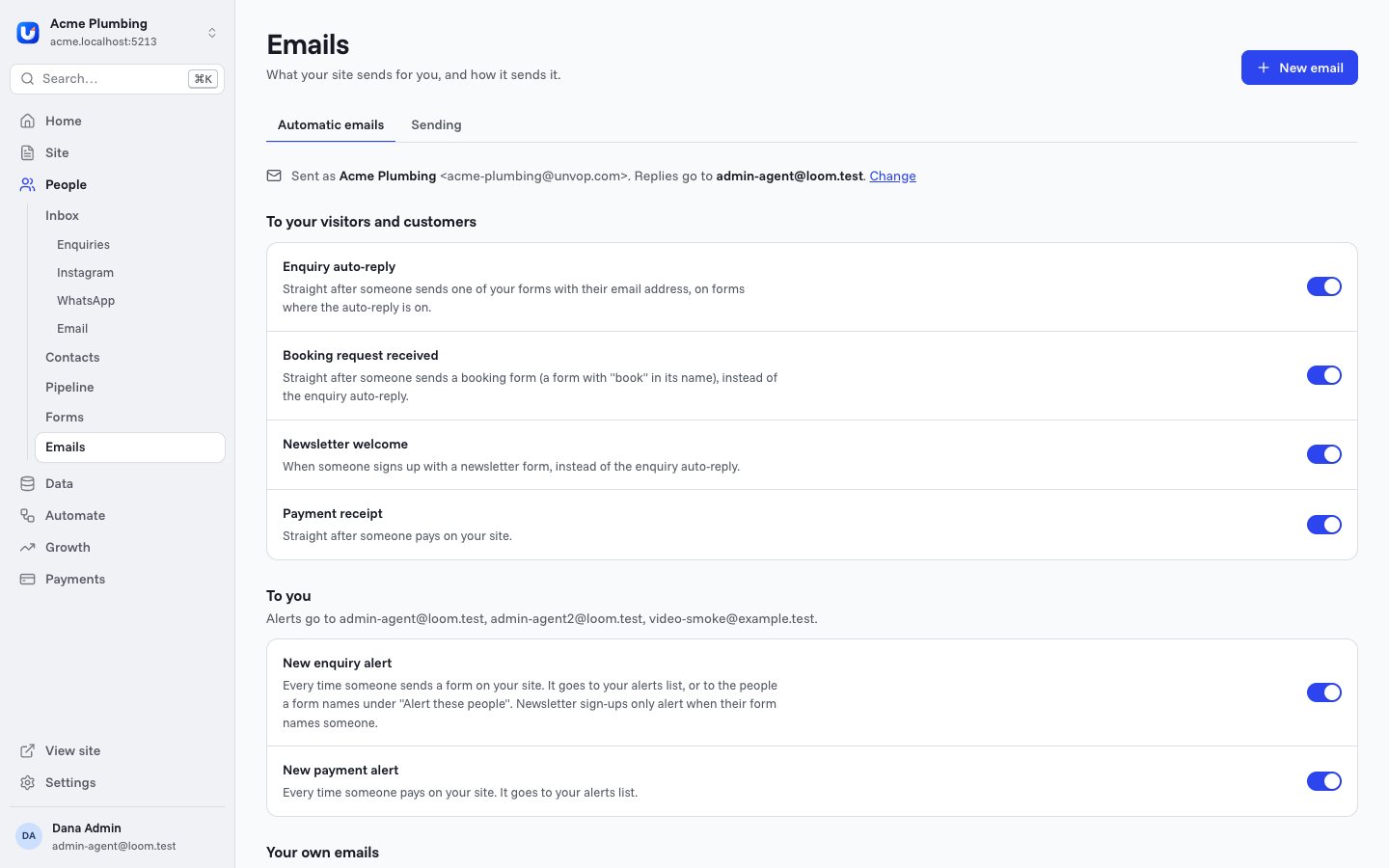
See what your site sends
In the sidebar, open People, then Emails. Automatic emails shows:
- To your visitors and customers: Enquiry auto-reply, Booking request received, Newsletter welcome and Payment receipt.
- To you: New enquiry alert and New payment alert.
- Your own emails: designed emails your workflows send.
Each one has its switch. Turn it off and that email stops going out. Nothing else changes.
Design an email
- Press the email's name. The designer opens full screen.
- Press a block in the list on the left, or click it in the email itself, to change it on the right.
- Press Add a block to add a Heading, Text, Button, Image, Two columns, Details, Divider, Space, Logo or Footer. It goes under the block you have selected.
- Use the arrows beside a block to move it, or the bin to remove it.
- Press Subject and preview at the top of the list to change the Subject and the Preview text inboxes show after it.
- Press Save.
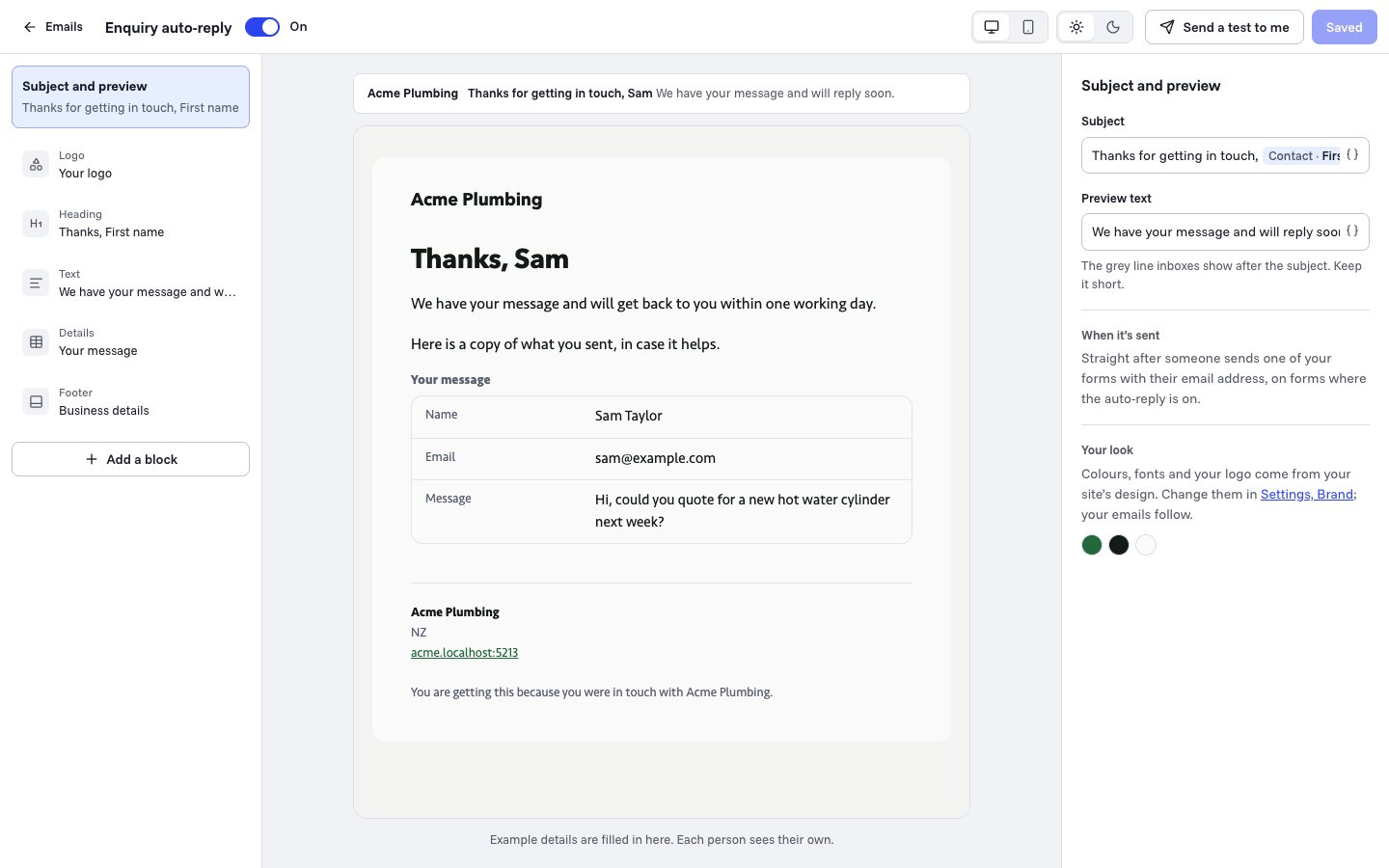
Colours, fonts and your logo come from your site's design, so your emails always match it. Change them in Brand.
Add a name or a detail
Text in an email can include details that change for each person, like their first name.
- Click into a text box, like the Subject or a Text block.
- Press Insert, or type
{{. - Pick the detail, like First name or Their message.
It shows as a chip. In the preview you see example details; each person gets their own.
Check it before it goes out
- The buttons at the top switch the preview between computer and phone width, and between light and dark mode.
- Press Send a test to me to get the email in your own inbox, with example details filled in. Tests count towards your month's emails.
Go back to the original
Changed an automatic email and want the version it started with? In the designer, press the More menu and choose Go back to the original.
Make an email for a workflow
- On Emails, press New email, give it a Name and press Create and design.
- Design it and press Save.
- In a workflow's Send an email step, choose it under Design. See Workflow steps.
Auto-replies and your forms
Every form sends the Enquiry auto-reply unless you switch Send the person an automatic reply off in the form's settings. Booking forms (a form with "book" in its name) send Booking request received instead, and newsletter forms send Newsletter welcome. See Forms.