
Your account
Change your name, your password and the dashboard's light or dark look, and sign out.
Your account is you: the name and email you sign in with. It's separate from your site's settings, and it follows you to every site you work on.
Your name and email are at the bottom of the sidebar. Click them to open the account menu.
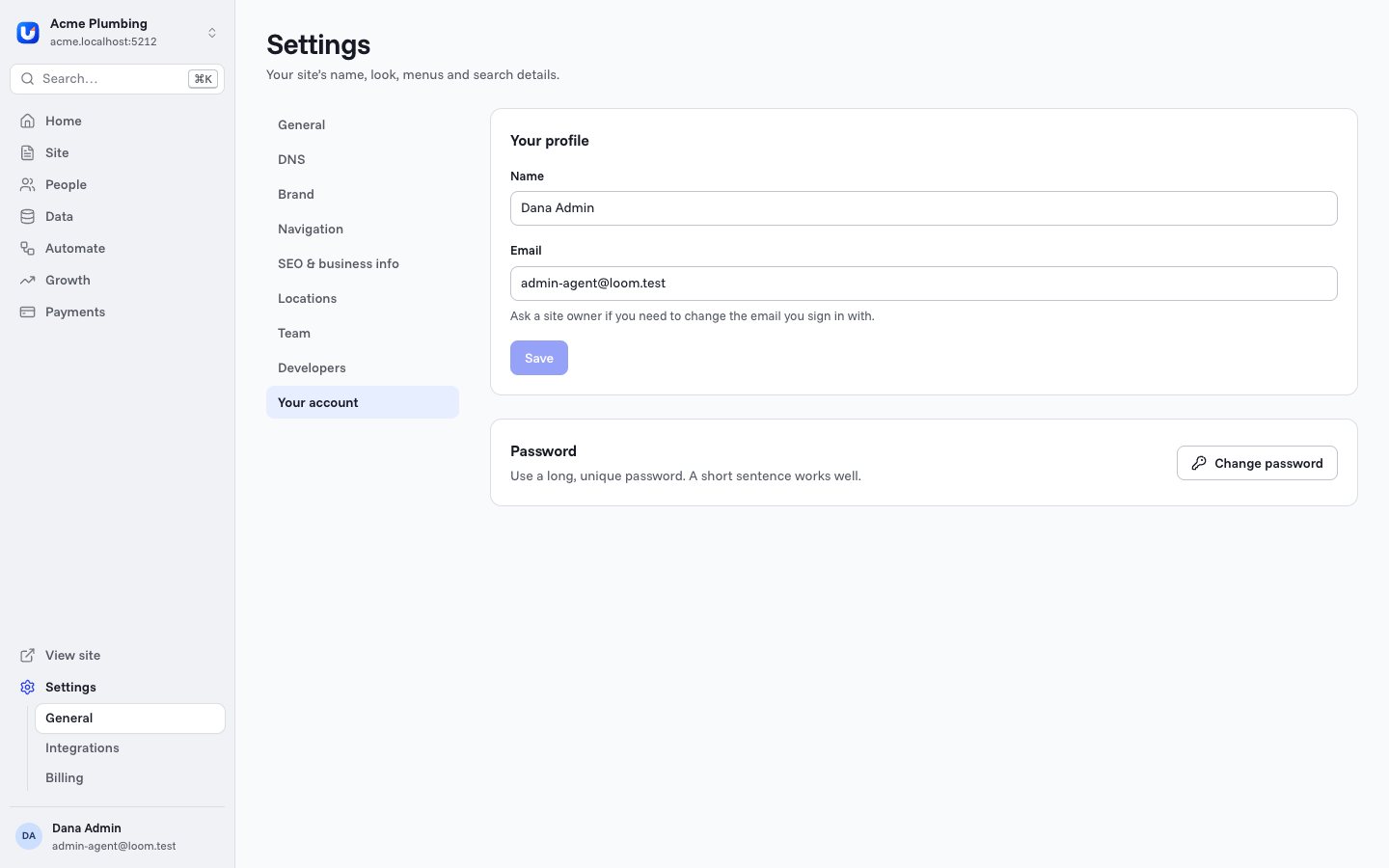
Change your name
- Click your name at the bottom of the sidebar, then Account settings. (Or open Settings, then the Your account tab.)
- Under Your profile, change your Name.
- Press Save.
Change your email
The email you sign in with can't be changed from the dashboard. Ask a site owner if you need to change it.
Change your password
- Click your name at the bottom of the sidebar, then Change password. (Or press Change password on the Your account tab.)
- Type your Current password.
- Type a New password of at least 10 characters, and again under Confirm new password. A short sentence works well.
- Press Update password.
Choose light or dark
- Click your name at the bottom of the sidebar.
- At the top of the menu, under appearance, choose Light, Dark or System. System follows your computer or phone's setting.
The choice applies to the dashboard on this device. It doesn't change your website.
Verify your email
New accounts see Verify your email. at the top of every screen until the address is confirmed. Open the link in the email Unvop sent you. If it's gone missing, press Send it again.
Sign out
- Click your name at the bottom of the sidebar.
- Choose Sign out.
On a phone, open Menu in the bar at the bottom first.