
Developers and AI assistants
Let Claude, ChatGPT, Cursor or VS Code work on your sites, and create API keys for your own code.
The Developers tab is where you let other software work on your sites. Connect an AI assistant like Claude or ChatGPT and you can ask it to edit a page, add a menu item to a collection or read your latest enquiries. Create an API key and your own scripts or a developer can do the same from code.
You choose which sites and what each one may do. You can cut any of them off at once.
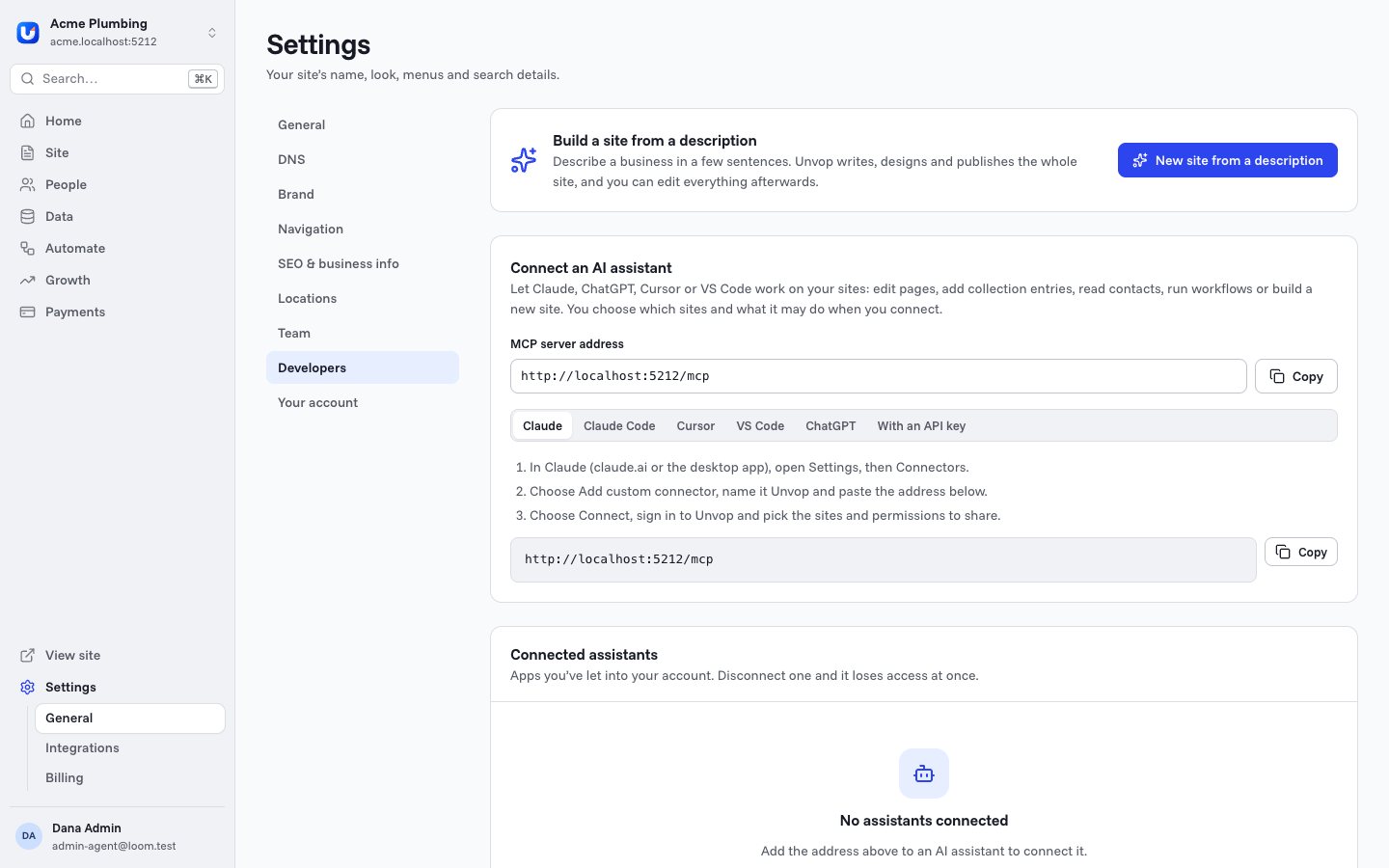
Connect Claude
- In the sidebar, open Settings, then Developers.
- Under Connect an AI assistant, press Copy next to MCP server address.
- In Claude (claude.ai or the desktop app), open Settings, then Connectors.
- Choose Add custom connector, name it Unvop and paste the address.
- Choose Connect, sign in to Unvop and pick the sites and permissions to share.
Claude can now work on those sites when you ask it to.
Connect ChatGPT
- Copy the MCP server address as above.
- In ChatGPT, open Settings, then Apps and Connectors, and turn on developer mode under Advanced.
- Create a connector, paste the address and choose OAuth.
- Sign in to Unvop and pick the sites and permissions to share.
Connect Cursor, VS Code or Claude Code
Under Connect an AI assistant, press Cursor, VS Code or Claude Code. Unvop shows the exact setting or command to use, with a Copy button. The first time the tool connects, it opens Unvop in your browser to sign in.
See and disconnect connected assistants
Connected assistants lists every app you've let into your account, with the sites it can reach, how many permissions it has and when you connected it.
- Press Disconnect next to the assistant.
- Press Disconnect again to confirm.
It stops working with your sites straight away. You can connect it again later.
Create an API key
API keys are for your own scripts, servers and apps, or a developer you hire.
- Open Settings, then Developers, and find API keys.
- Press New key.
- Give it a Name that says where you'll use it, like "Zapier" or "Deploy script".
- Under What the key acts as, choose:
- Account key: acts as you on your sites. It can also create sites and build them with AI. Under Sites, choose All my sites, including new ones or Only the sites I choose.
- Site key: one site you manage, nothing else. Pick the Site.
- Under Permissions, tick only what it needs, like Read contacts or Edit content.
- Press Create key.
- Press Copy and store the key somewhere safe, like a password manager. Then press I've copied it.
Revoke a key
- Under API keys, press the bin icon next to the key.
- Press Revoke key.
Anything using the key stops working immediately. This can't be undone, so create a new key first if something still needs access.
Each key shows when it was Last used, which helps you spot keys nobody needs any more.
For developers
Using the API at the bottom of the tab shows your API base address and a first request to try. The full reference, with every endpoint, its permissions and examples, is at developers.unvop.com.
Build a new site from a description
The top of the tab also has New site from a description. Describe a business in a few sentences and Unvop writes, designs and publishes a whole site you can edit afterwards. See Your first site.